The Builterra platform makes it easy to organize your projects and inspection forms by allowing you to “favorite” them. Favoriting ensures your most-used projects and forms are always just a click or tap away — no more scrolling through long lists or searching under pressure while on-site.
This article will walk you through the steps for favoriting projects and forms on the Builterra web portal and show how they appear within the Builterra Pro mobile app.
TABLE OF CONTENTS
Overview
Whether you’re a new user learning the basics or an experienced inspector managing multiple active projects, favoriting is one of the simplest and most effective ways to improve your workflow.
By favoriting:
You can prioritize projects and forms most relevant to your current work.
You’ll spend less time searching and more time capturing data.
Your favorites sync between web and mobile, ensuring consistency across devices.
Favoriting Projects and Inspection Forms
Quickly access favorite projects and inspection forms in just a few steps. Prioritize and access them on web and mobile platforms, saving time and effort for users handling multiple projects.
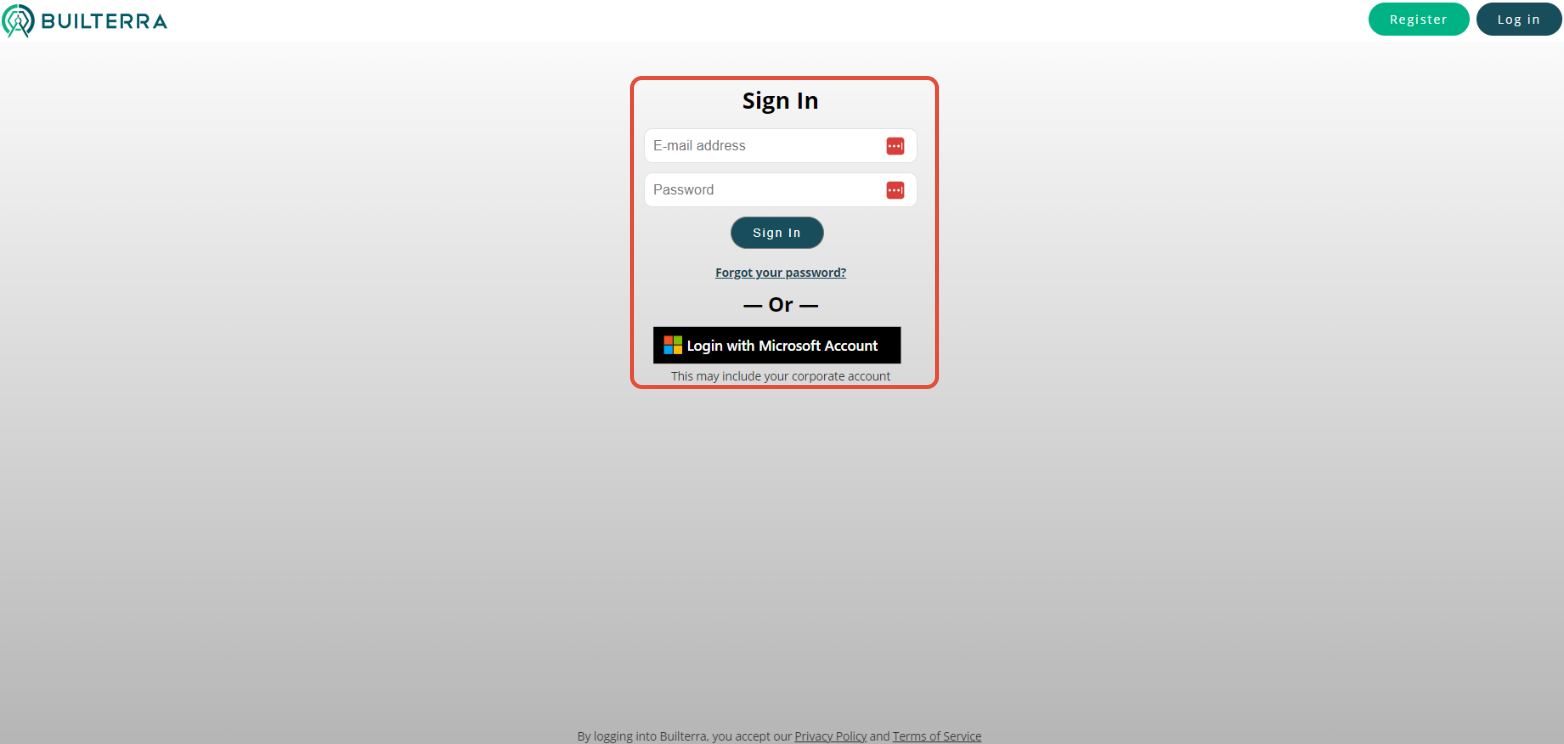
1. Sign in to the Builterra web portal using your credentials.
2. Navigate to the Profile Portal by clicking on your name in the top-left corner of the screen. This is where your account preferences and settings are managed.

3. Click the Settings Tab within the Profile Portal to access customizable options.
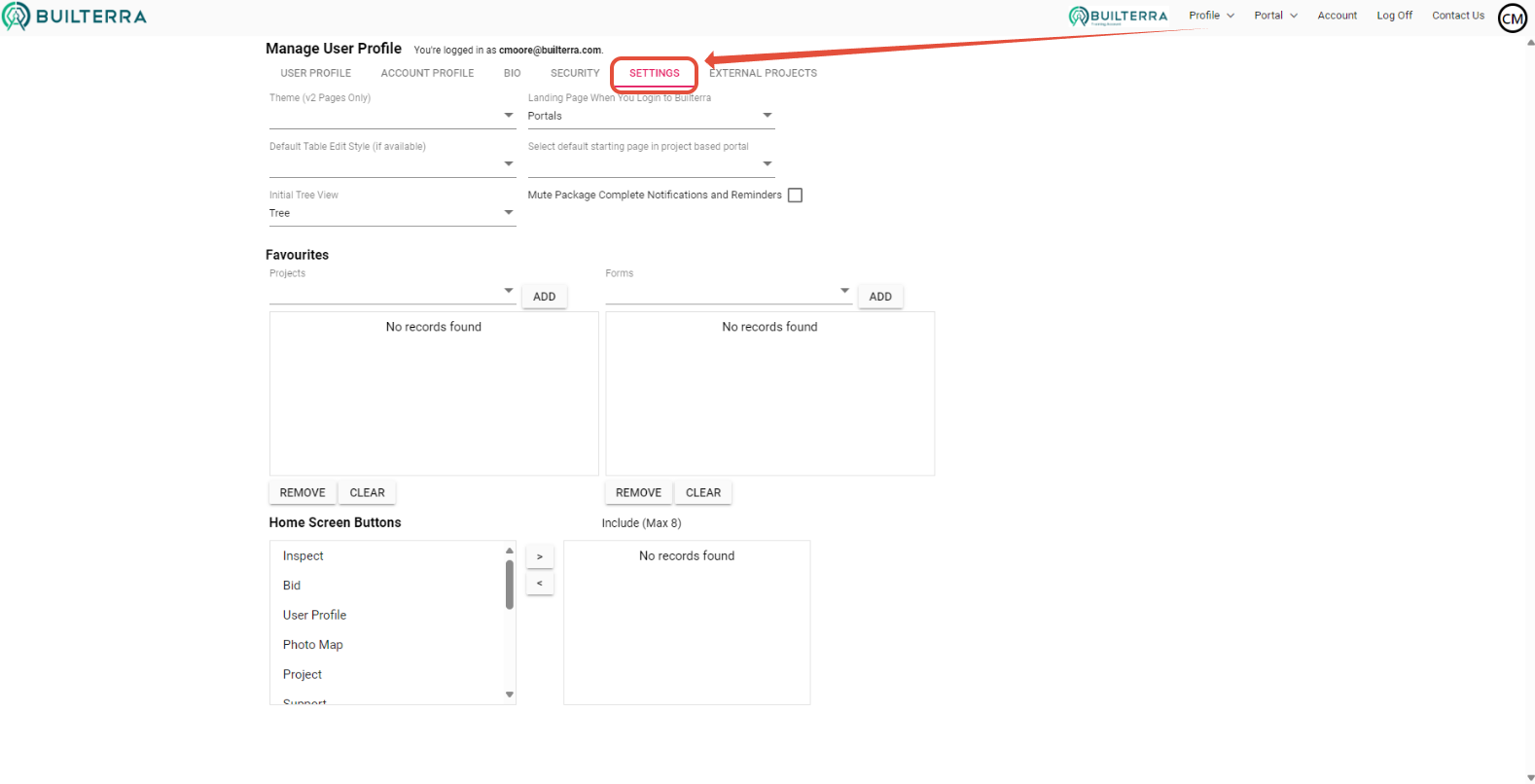
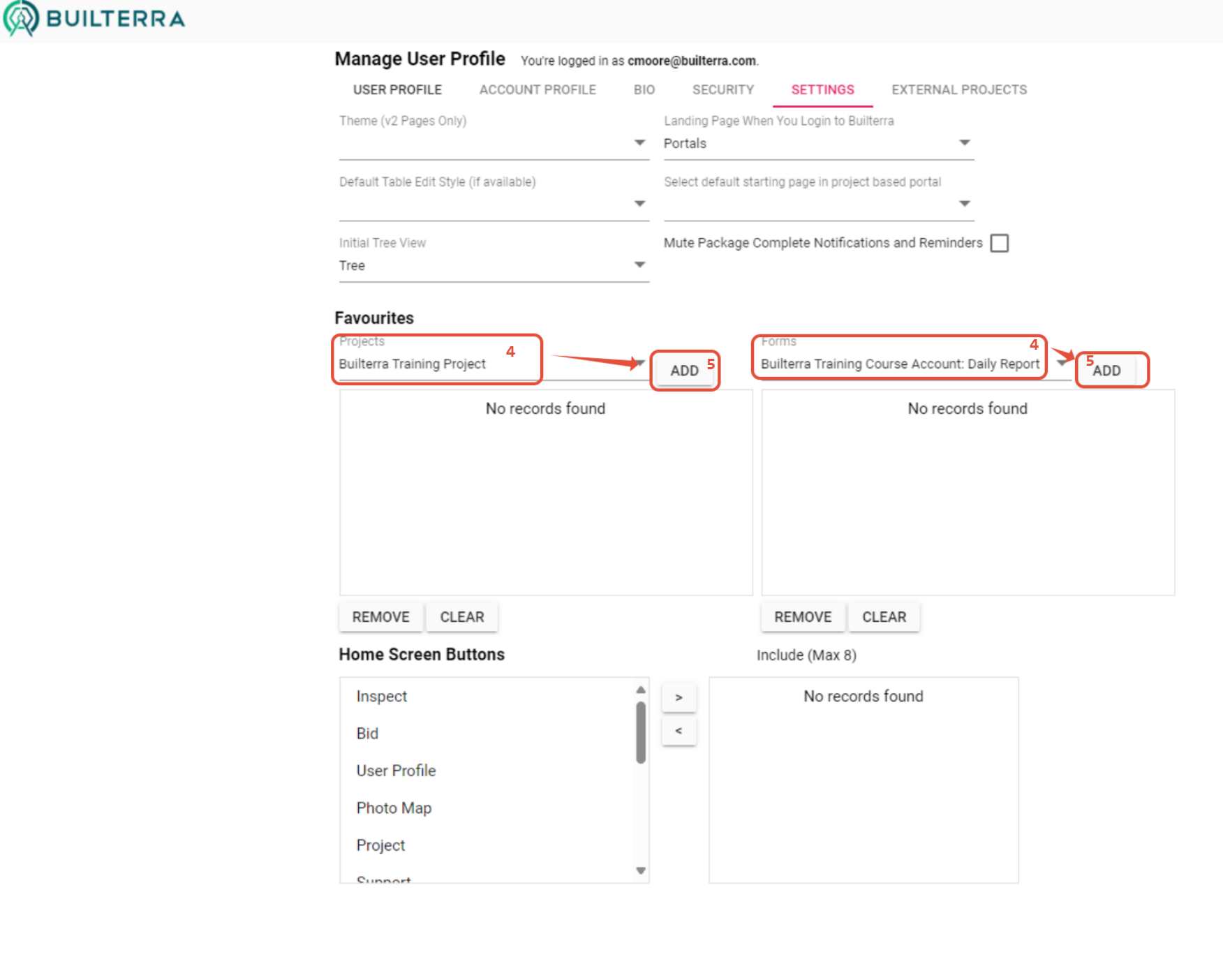
4. Scroll to the Favourites section. Here you’ll see available projects and inspection forms.
5. Select one or multiple projects and inspection forms that you use most frequently.
6. Click Add to include your chosen items in your Favourites list.
7. Confirm your changes by reviewing the “Favourited Projects and Forms” box at the bottom of the screen. You can add as many as you like — tailor this list to match your active workflow.
Why this matters: Favoriting in the web portal creates a personalized, streamlined list that carries over to your mobile app. This ensures that whether you’re at your desk or in the field, the items you need most are always accessible.
 Before | 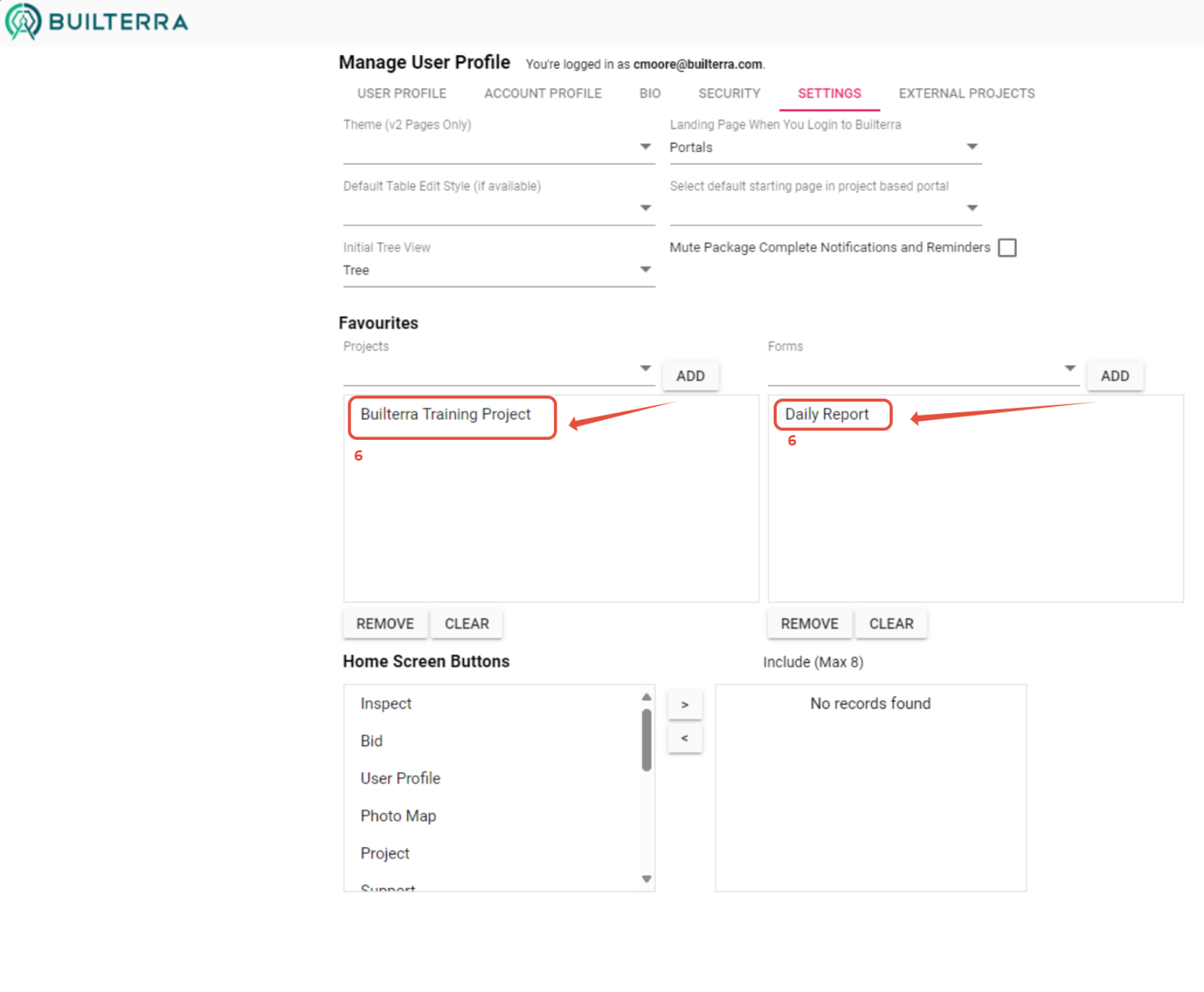 After |
Final Thoughts
By following this guide, you’ve learned how to favourite projects and inspection forms in the Builterra web portal and how those favourites appear in the mobile app. This simple step can save significant time, reduce errors, and make project navigation more intuitive.
If you’d like a visual walkthrough, check out our training video on favoriting projects and forms in Builterra Pro.
If you prefer a more visual learning experience, check out our video based around favoriting projects and forms check out our video on the topic
Next steps
Now that you’ve set up your favourites, consider exploring:
Customizing Builterra Pro Settings – Adjust your app experience to suit your needs.
Creating Single Visit or Multi Visit Reports – Start using your favourited forms for real inspections.
Don’t forget to let us know if this article was helpful by leaving feedback below.
Recommended Articles
How do I Create a Single Visit ReportHow do I Create a Multi Visit ReportHow do I Configure my Builterra Pro App
Was this article helpful?
That’s Great!
Thank you for your feedback
Sorry! We couldn't be helpful
Thank you for your feedback
Feedback sent
We appreciate your effort and will try to fix the article