Configuring the Builterra Pro Settings is one of the most effective ways to optimize your workflow and improve efficiency in the field. This article takes an in-depth look at the settings available in the Builterra Pro mobile app, explaining how each option functions and how it can be tailored to your specific inspection needs. By understanding and customizing these settings, you’ll be able to personalize your experience, streamline data entry, improve reporting accuracy, and ensure the app works the way you do.
TABLE OF CONTENTS
- Preliminary Thoughts
- Accessing the Settings
- Exploring Settings and Their Functions
- Sorting Options
- Connect to EOS
- Final Thoughts
- Next steps
- Recommended Articles
Overview
This article will take an in-depth look at the Builterra Pro mobile app settings, exploring their functionality and demonstrating how they can significantly improve your efficiency and overall user experience. You will learn how to tailor the app to suit your specific needs, optimize your workflow, and seamlessly manage your projects with ease.
Understanding and configuring your settings is one of the most impactful steps you can take when getting started with Builterra Pro. The settings allow you to personalize the app for the type of inspections you conduct most often, control how data is stored and shared, and streamline how you interact with reports. By mastering these options, you’ll not only save time in the field but also reduce errors and improve reporting accuracy.
Accessing the Settings
1. Log in to the Builterra Pro mobile app with your Web Portal credentials 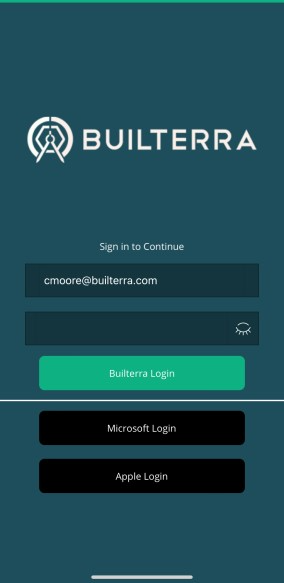
2. After selecting the account and project, access the Settings page by tapping the cogwheel icon on the home page or by opening the menu and selecting Settings.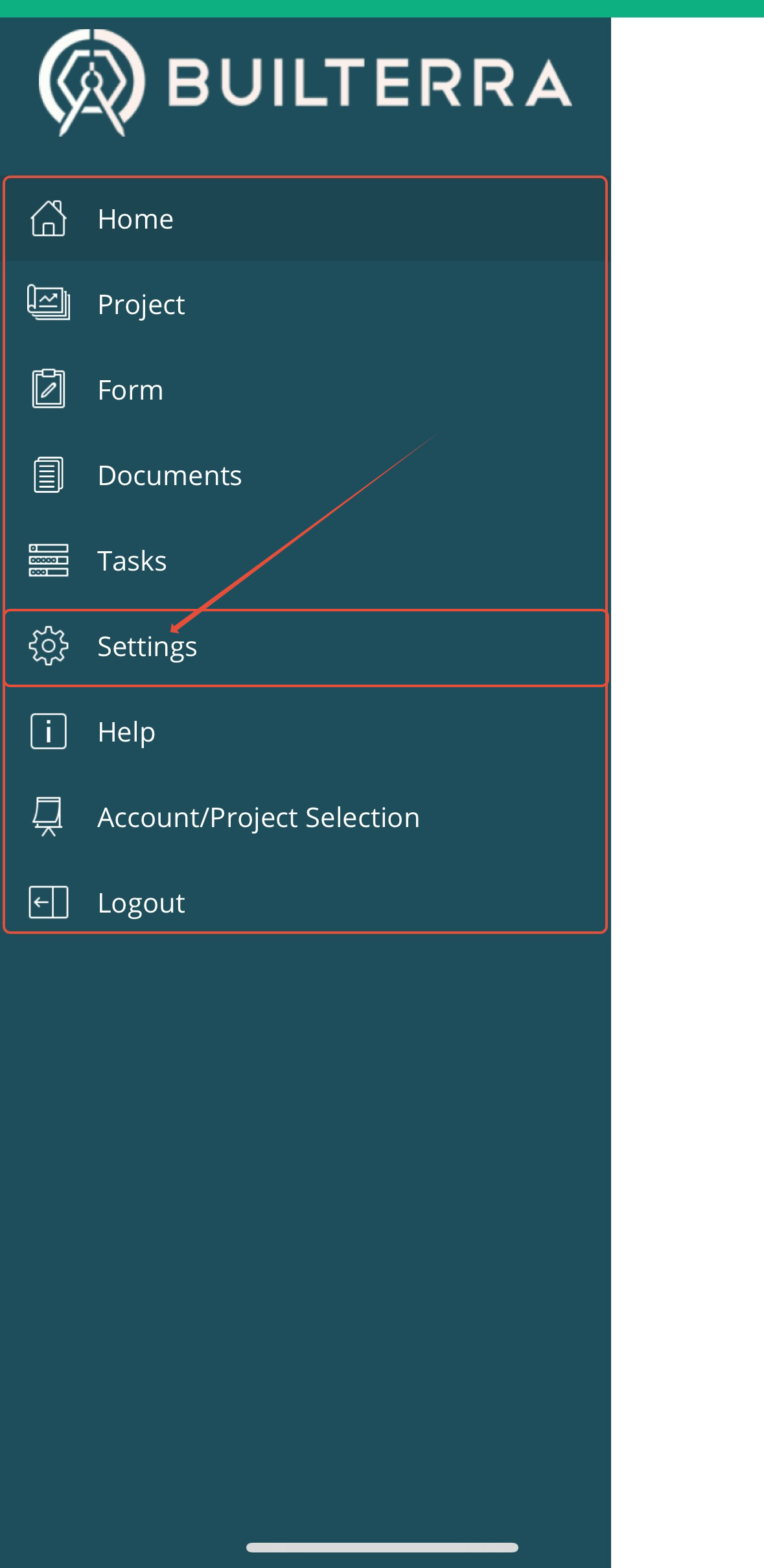
This step is helpful because it ensures that you are customizing the app for the specific account and your personal preferences. Every user has their own preferences for how they use the app, and accessing the right settings means your workflow will align seamlessly with those needs. Getting comfortable with where and how to access these controls sets the foundation for everything else in this article.
Exploring Settings and Their Functions
At the top of the Settings page, you’ll find the app version you’re currently running and information about your device. It’s best practice to check for updates regularly in your device’s App Store to ensure you’re using the most stable and secure version of Builterra Pro. 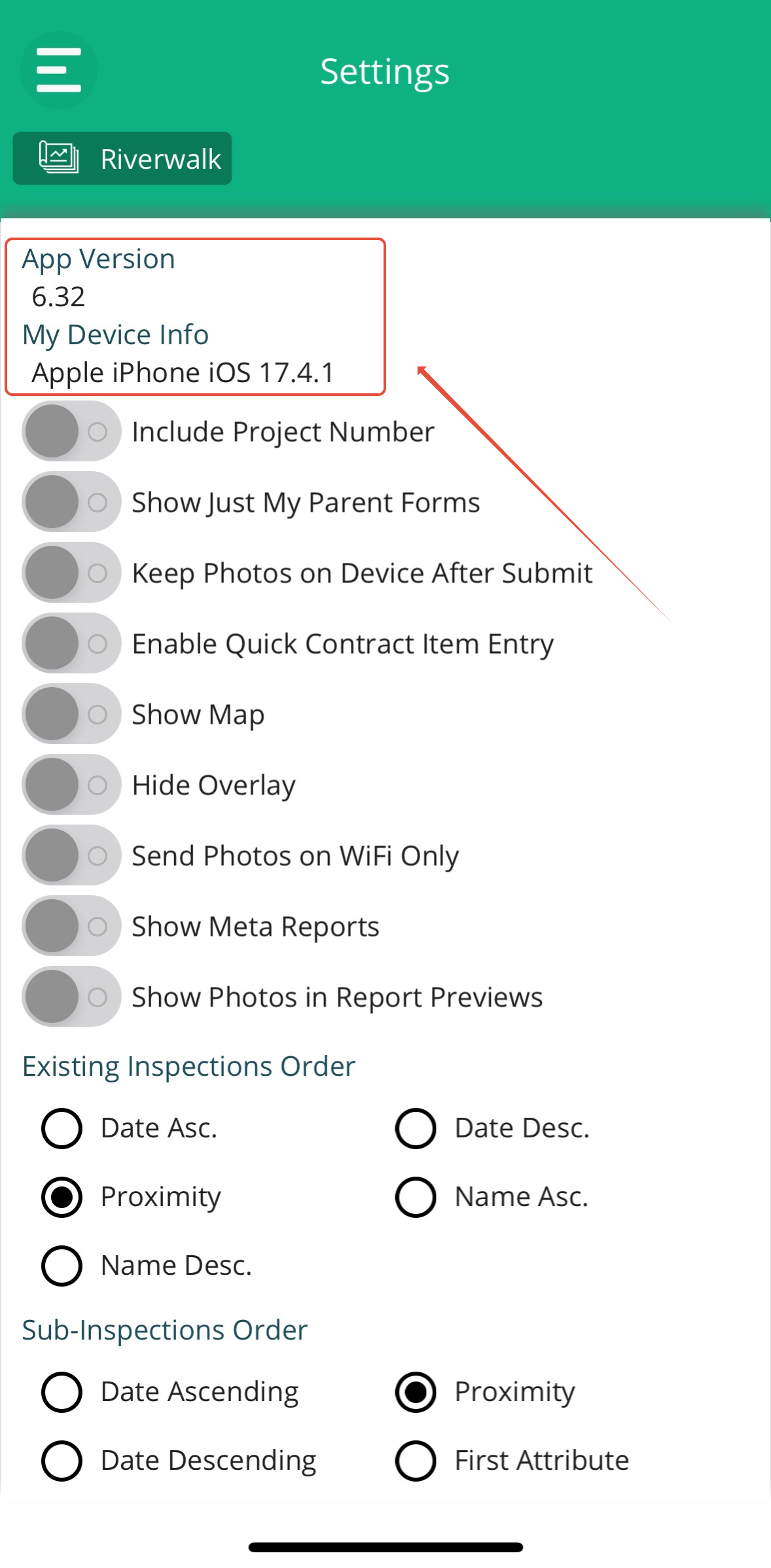
Please regularly check your phone's App Store for updates you are on the most stable and newest version of Builterra Pro
| Setting | Description |
| Include Project Number | Toggle this setting to dynamically add or remove the project number in the bubble at the top of your screen. It is useful for providing a numerical identifier for complex project names, improving readability and navigation. |
| Show Just My Parent Forms | Enable to Filter out inspections created by other users, simplifying the management of your own inspections. This ensures you can easily locate and manage inspections specifically created by you. |
| Keep Photos on Device After Submit | Toggle to store a backup of each submitted photo on your device, providing additional security and accessibility. Consider your phone storage implications and manually manage unwanted photos if necessary. |
| Enable Quick Contract Item Entry | Activate a more efficient method of filling out Contract Item sub-inspections, saving time during data entry. |
| Show Map | Enable to add a map tab while creating parent inspection forms, facilitating precise location modification and visual representation. |
| Hide Overlay | Toggle to deactivate overlays when viewing the map tab, ensuring a clear and unobstructed view for enhanced mapping accuracy. |
| Send Photos on WiFi Only | Enable to submit photos only when connected to Wi-Fi, conserving cellular data and enhancing reliability during submission. |
| Show Meta Reports | If available, enable to access and manage Meta Reports on the mobile app, expanding reporting capabilities for advanced users. |
| Show Photos in Report Previews | Toggle to incorporate inspection photos into the report preview, enhancing visual representation but consider potential memory and time implications. |
Each of these settings is designed to give you control over your reporting workflow. For example, filtering inspections down to just your own reduces clutter, while enabling WiFi-only photo uploads ensures stable and cost-effective data transfer. By tailoring these toggles to your specific role and project needs, you ensure that Builterra Pro works for you rather than the other way around.
Sorting Options
Sorting options allow you to customize the order of inspections and sub-inspections, making it easier to find and prioritize tasks. Options include: 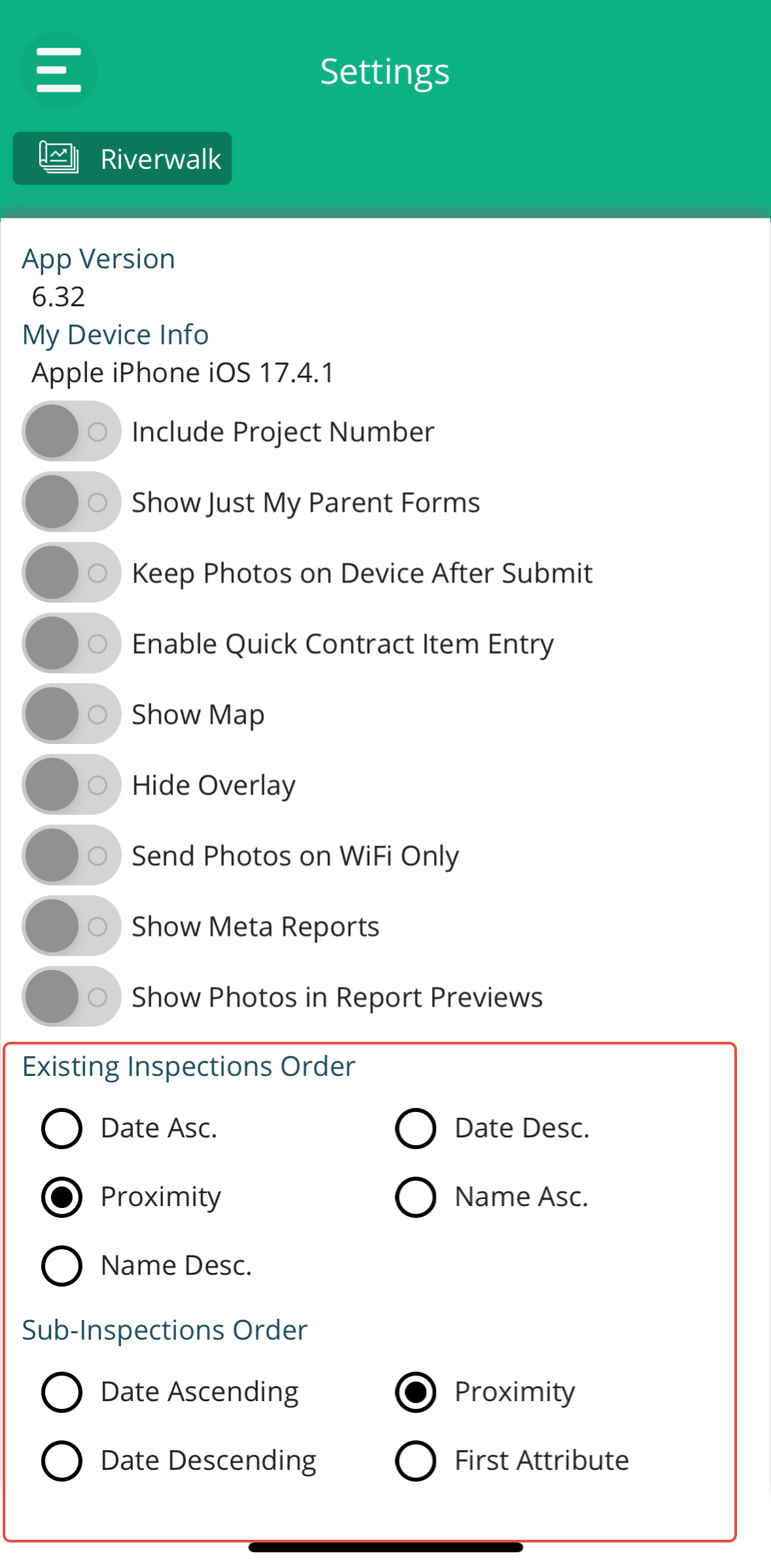
Utilizing these settings provides you with valuable flexibility and control over the organization of existing and sub-inspections within your project. By customizing the order based on your preferred sorting criteria, you can streamline your workflow and enhance efficiency in several ways:
| Setting | Description |
| Proximity | Sorting by proximity enables you to arrange inspections based on their geographical location relative to each other or to a specific reference point. This can be particularly beneficial for fieldwork, allowing you to efficiently plan routes and address inspections based on their physical proximity, thereby minimizing travel time and optimizing resource allocation. |
| Alphabetical Order | Sorting inspections alphabetically simplifies navigation and reference, making it easier to locate specific inspections quickly. This straightforward arrangement can enhance organization and clarity, especially when dealing with a large number of inspections or diverse project components with distinct names. |
| Date Ascending or Descending | Sorting by date allows you to sequence inspections chronologically, either in ascending (oldest to newest) or descending (newest to oldest) order. This can be invaluable for tracking the progression of inspections over time, identifying trends, and ensuring timely completion of tasks. Additionally, sorting by date can aid in prioritizing inspections based on their deadlines or relevance to current project phases. |
Connect to EOS
Connecting Builterra Pro to the Earth Observation System (EOS) gives you the advantage of enhanced GPS accuracy by leveraging satellite-based tracking. This improves precision when capturing locations in your inspection reports, ensuring measurements and coordinates are more reliable.
Why does this matter? Accurate location data is often the foundation of inspection reporting. By enabling EOS integration, you strengthen the credibility of your reports and reduce the margin of error in project documentation. This can be especially valuable for projects requiring tight compliance or those that cover large geographical areas.
Final Thoughts
Customizing your Builterra Pro settings allows you to align the app with your workflow, making it more than just a reporting tool—it becomes a tailored project management companion. Whether you want to filter your inspections for simplicity, save mobile data while uploading, or improve accuracy with EOS, these settings put the control in your hands.
By taking the time to configure the app properly, you’ll gain efficiency, accuracy, and peace of mind knowing the tool is working exactly the way you need it to.
Next steps
How to Upload, View & Link Documents
Creating Templates in the Web Portal & Importing Items in the Pro App
Let us know if this article was helpful below.
Recommended Articles
How do I Upload, View & Link Documents on Builterra ProHow do I Create Template in the Web Portal & Import Items in the Pro AppHow do I Create & Complete Mobile Tasks
Was this article helpful?
That’s Great!
Thank you for your feedback
Sorry! We couldn't be helpful
Thank you for your feedback
Feedback sent
We appreciate your effort and will try to fix the article