The Builterra Pro mobile app is designed to streamline field inspection workflows by giving users direct access to project data, inspection forms, and related tasks — all from their mobile device. Whether you’re a field inspector, project manager, or stakeholder, Builterra Pro enables you to capture and manage inspection data on-site, ensuring faster communication and more accurate project documentation.
This article will guide you through the installation process, initial setup, and navigation of the Builterra Pro app. By the end, you’ll understand how to confidently log in, access your projects, and use the main features available to you.
TABLE OF CONTENTS
Overview
The purpose of this article is to help users quickly get comfortable with the navigation and core functions of the Builterra Pro app. While this guide assumes you have at least the Inspection Viewer role, users with higher permissions may see additional features.
With Builterra Pro, you can:
Access project information directly in the field.
Record inspection data and upload documents in real time.
Switch between multiple accounts and projects with ease.
Installing Builterra Pro
The Builterra Pro app is available for both iOS and Android devices. Installation is straightforward:
For iPhone Users – Open the Apple App Store, search for Builterra Pro, and install the app.
For Android Users – Open the Google Play Store, search for Builterra Pro, and install the app.
Once installed, ensure you have a stable internet connection before logging in for the first time.
Quick links:
Apple App Store
Google Play Store
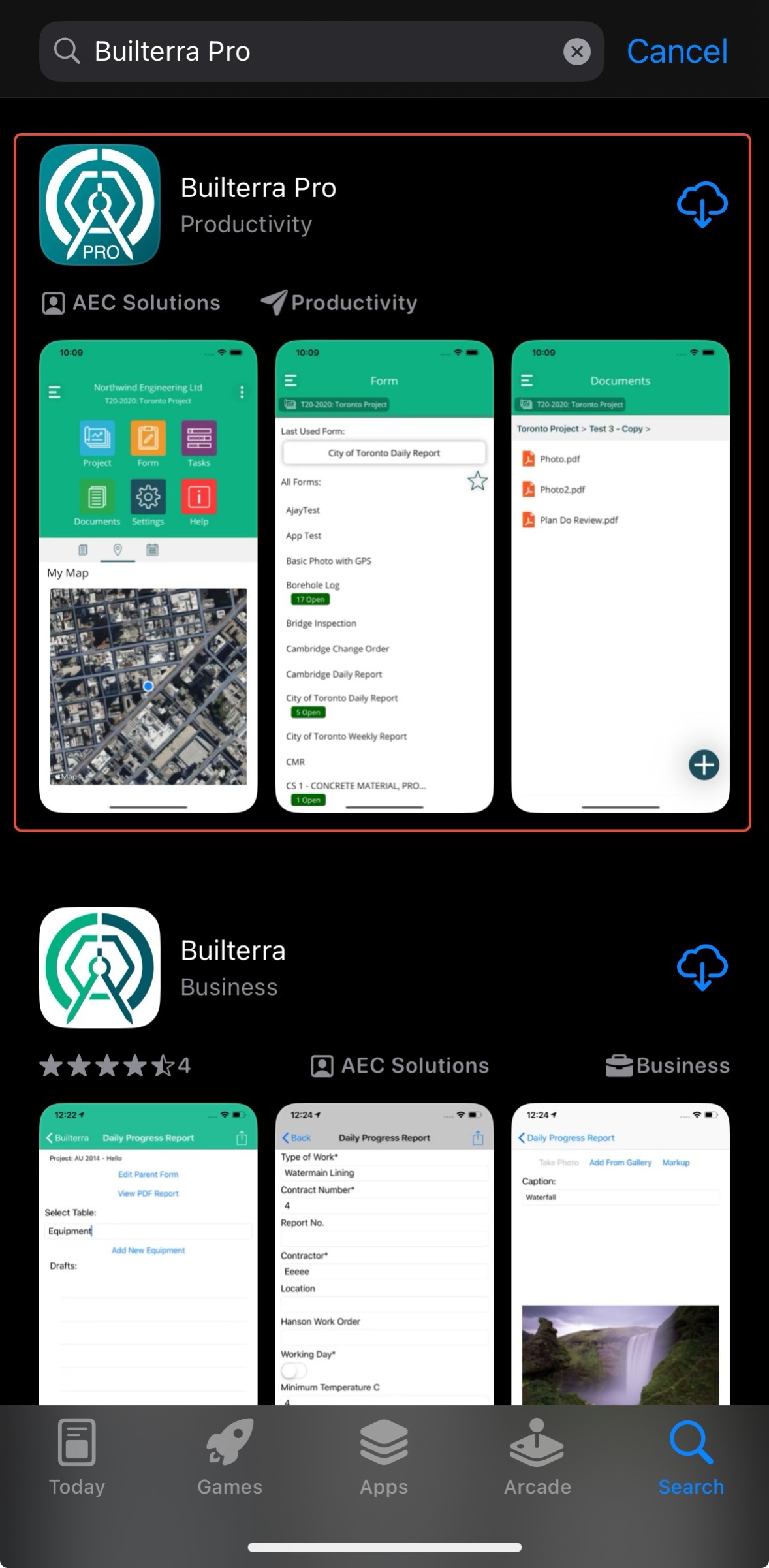 Apple App Store | 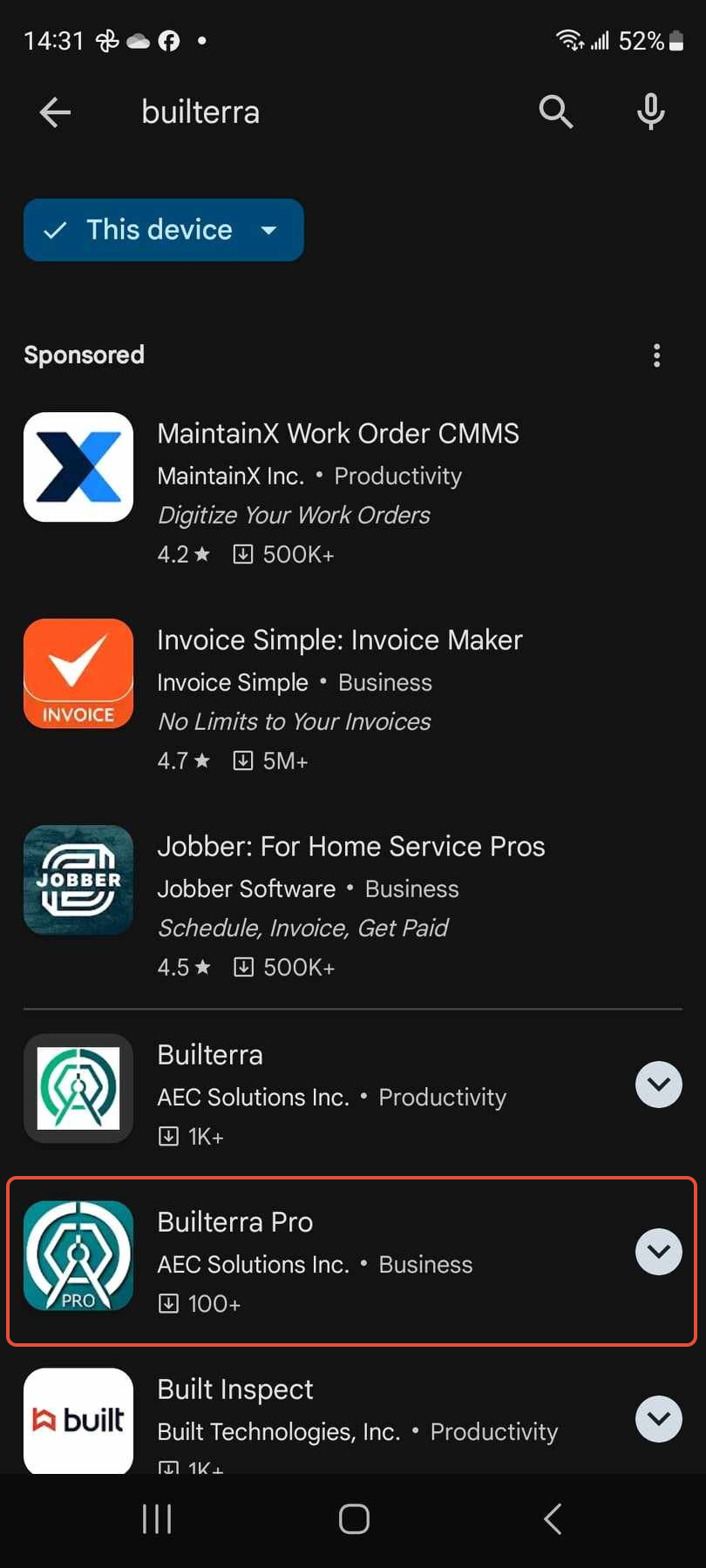 Google Play Store |
Navigating the Builterra Pro Mobile App
1. When you launch the app, you’ll be prompted to log in. You can use:
Your Builterra credentials (username and password).
Or, if your company has enabled it, your Microsoft credentials through Microsoft Single Sign-On (SSO).
Tip: If you have access to more than one Builterra account, you’ll see the Select Account screen. Always choose the correct account before proceeding to avoid confusion.
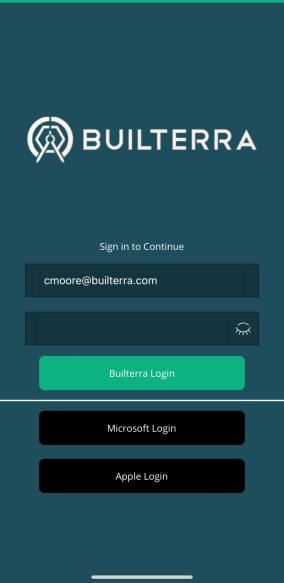
2. After logging in, you’ll notice several filter options that help you quickly find the right project:
| Filter | Allows you to filter projects by Major Group & Minor Group |
| Project Map | Select your project from a project location on the map |
| Proximity | Sorts projects from the closest location to your current location |
| Favourite | Reduce the project list to only projects that have been favourited |
These filters are especially useful when managing multiple active projects.
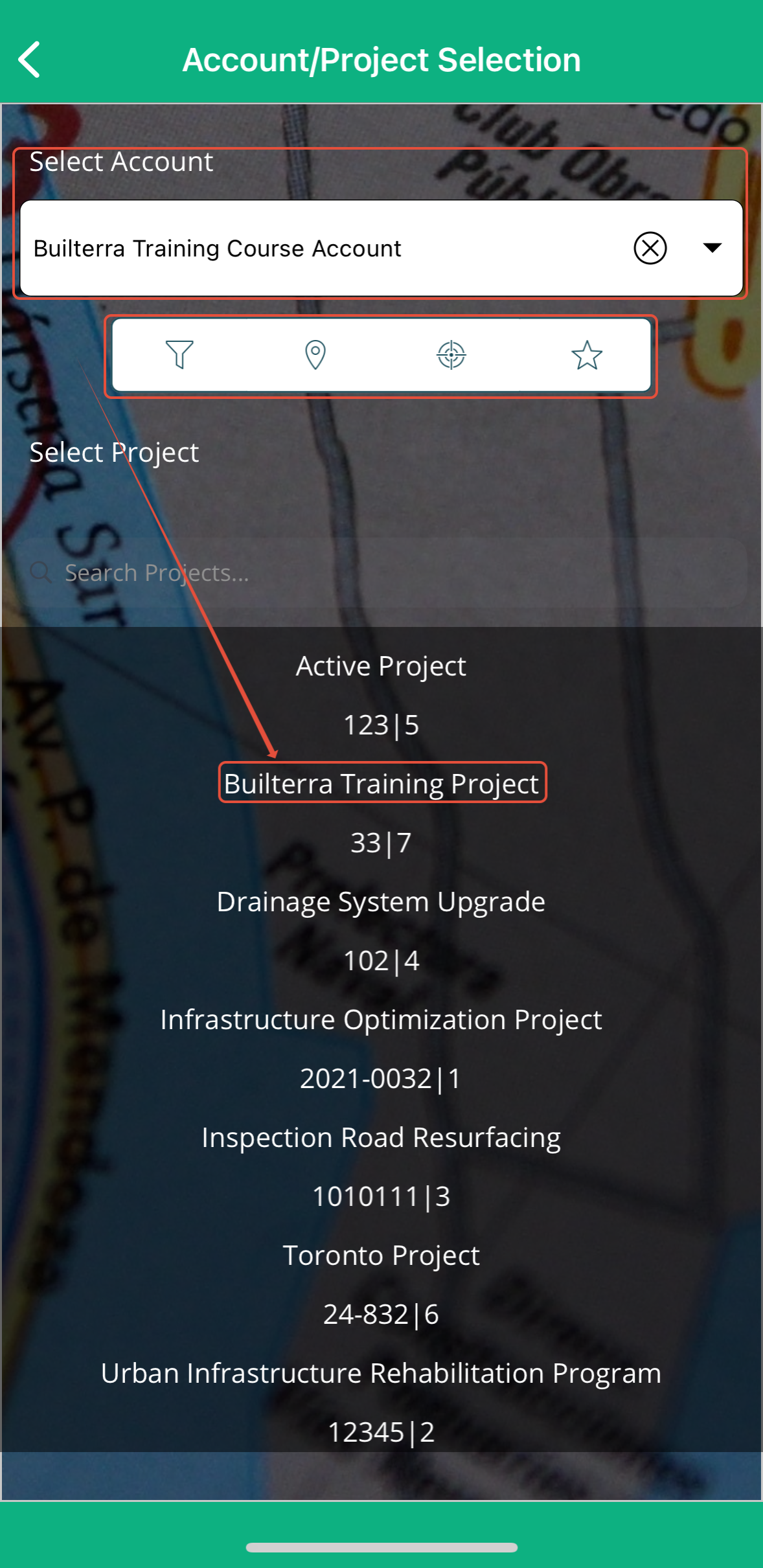
3. Once you’ve located your project using one of the filter options, tap to open it. You’ll then be brought to the main project screen, where you can access forms, documents, and tasks.
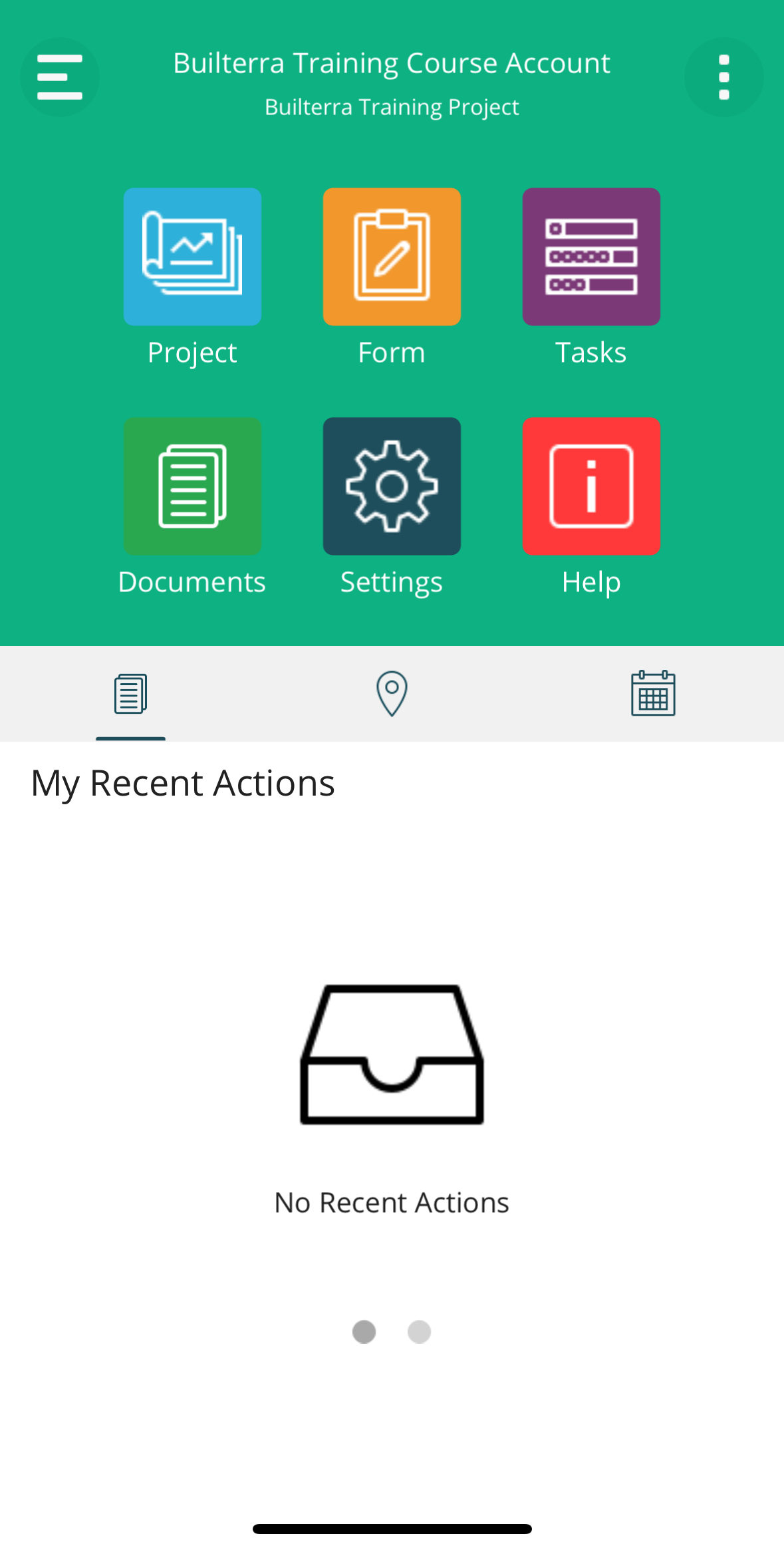
4. The main menu can be accessed by tapping the three-line icon (☰) on the top-left corner of the screen. From here, you’ll find the core sections of the app:
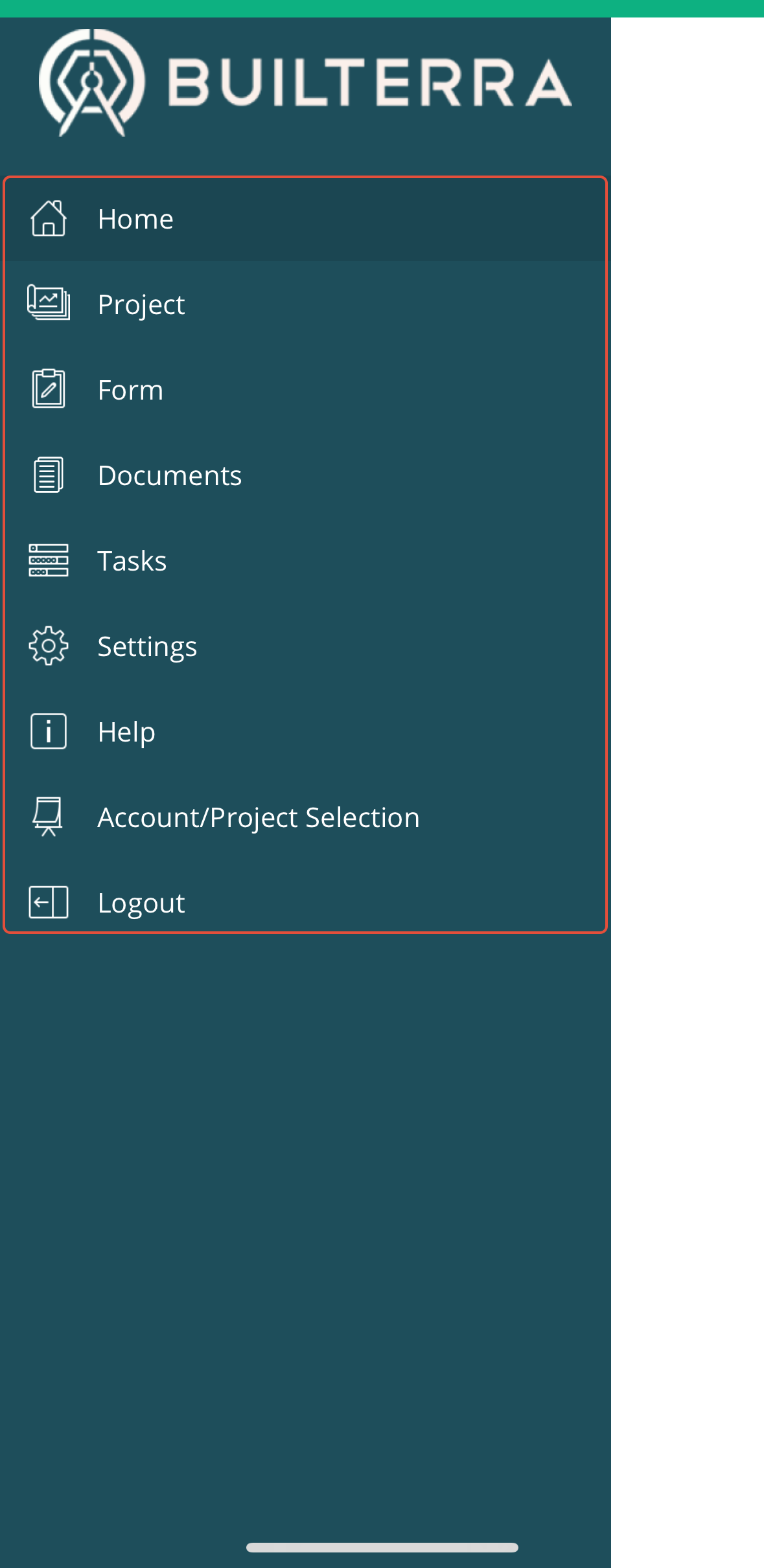
| Home | Overview of recent actions, inspection location maps, and upcoming tasks. |
| Project | View general project details, including descriptions, photos, and configurations. |
| Form | Access inspection forms for creating and submitting reports. Favorited forms appear at the top. |
| Documents | Upload and view files related to the project or inspections directly from your device. |
| Tasks | Manage project tasks by creating, editing, completing, or deleting them. |
| Settings | Customize your app experience by toggling specific preferences. |
| Help | Access the Builterra Support Portal for technical resources and to submit support tickets. |
| Account/Project Selection | Quickly switch between accounts or projects without logging out. |
| Logout | Securely sign out of your session. |
Final Thoughts
By following this guide, you should now be comfortable installing and navigating the Builterra Pro mobile app. The app is designed to make inspections and project management more efficient, saving you time both in the field and at the office.
If you prefer a visual walkthrough, check out our step-by-step training video on navigating the Builterra Pro app.
If you prefer a more visual learning experience, check out our video based around navigating the Builterra Pro mobile app
Next steps
Once you’re familiar with navigation, we recommend exploring:
Customizing Builterra Pro Settings – Tailor the app to your workflow.
Creating Single Visit or Multi Visit Reports – Start capturing real project data.
Don’t forget to let us know if this article was helpful by submitting your feedback below.
Recommended Articles
How do I Create a Single Visit ReportHow do I Create a Multi Visit ReportHow do I Configure my Builterra Pro App
Was this article helpful?
That’s Great!
Thank you for your feedback
Sorry! We couldn't be helpful
Thank you for your feedback
Feedback sent
We appreciate your effort and will try to fix the article