How to Upload, View & Link Project Documents
Project Documents in Builterra Pro provide a centralized and reliable way to store, access, and link critical files such as drawings, specifications, photos, and supporting documentation. This article walks you through uploading documents on the web portal, viewing and managing them on the mobile app, and linking documents directly to inspection reports. By mastering these features, you’ll be able to streamline document access in the field, improve collaboration between teams, and ensure your inspections and reports are supported with the right information at the right time.
TABLE OF CONTENTS
- Introduction
- Accessing Tasks
- Creating Project Tasks
- Editing Project Tasks
- Creating Inspection-Specific Tasks
- Conclusion
Overview
This article will cover the process of creating and completing project tasks as well as inspection-specific tasks using the Builterra Pro mobile app.
Using tasks within the app streamlines project oversight by turning inspection findings, follow-ups, and action items into clearly assigned, trackable work. Instead of relying on scattered notes, emails, or memory, tasks provide a structured workflow where every issue has an owner, a status, and supporting context such as photos or linked inspection data. This improves communication between field staff and office teams, reduces the risk of missed deficiencies, and creates a transparent audit trail for contract administration. By centralizing these actions in the same environment where inspections and reports are created, teams can close the loop more efficiently, maintain accountability, and ensure that critical project activities move forward without delays.
Accessing Tasks
Before you can start using the task features, you need to know where to find them—and this section helps you do that quickly. It explains how the Tasks page is structured so you can confidently navigate between active tasks, drafts, and scheduled work. Understanding this layout saves you time in the field and ensures you always know where to check for assignments or upcoming deadlines.
1. Log in to the Builterra Pro mobile app with your Web Portal credentials.
2. Upon logging in, select a project, and then navigate to the Tasks page either through the button on the home page or by accessing it from the mobile app menu.
3. The Tasks page displays current open tasks, and you can use the bottom tabs to view 'Drafts' or a 'Calendar' for task scheduling.
![]() | ![]() | ![]() |
Creating Project Tasks
This section is valuable if you're responsible for capturing work items, documenting issues, or assigning tasks to others on your project team. Learning how to create tasks properly ensures that all required information is captured the first time, reducing back-and-forth communication and preventing anything from slipping through the cracks. By mastering task creation, you'll enable clearer accountability and smoother project execution.
1. Tap the Blue Plus button to create a new task.
2. Fill out the task details such as Name, Description, Assigned Person, and Due Date.
3. Utilize custom task fields configured by your Account Administrator if available.
4. Add relevant photos to the task by selecting the 'Add Photo/Sketch' option.
5. Save the task and submit it using the menu button.
![]() | | ![]() |
| Step 1 | Steps 2 & 3 | Step 4 |
![]() | | |
| Step 5 | Submitted Task Example |
Editing Project Tasks
Project conditions change, deadlines shift, and responsibilities get reassigned—and that’s where this section becomes important. Knowing how to update tasks ensures that your project records remain accurate and that the right people stay informed. This prevents outdated information from causing delays, and it helps your entire team maintain real-time visibility into what needs to be done and by whom.
1. To edit a submitted task, select it from the list on the Tasks page.
2. Modify details such as Due Date and Assigned To.
Note that Task Name and Description cannot be edited after submission.
3. Click the 'Update' button to save changes and ensure synchronization with the web portal.
![]() | ![]() | ![]() |
| Step 1 | Step 2 | Step 3 |
Creating Inspection Specific Tasks
If you work heavily with inspections, this section matters because it shows you how to tie tasks directly to field observations. This makes deficiencies easier to track and eliminates the common problem of inspection notes getting separated from follow-up actions. Learning this feature strengthens your documentation quality, supports compliance, and makes multi-visit reports much more actionable.

Step 1: Enable Inspection Specific Tasks on the form configuration web portal page.
![]() | ![]() |
| Step 2: For multi-visit inspection reports, add tasks by navigating to the Forms page and selecting "Add Task" from the sub-inspection dropdown. | Step 3: Tap on green 'Add task' button |
![]() | ![]() |
| Step 4: Fill out the details of the task | Step 5: Submit the Task |
Final Thoughts
By following these step-by-step instructions, you can effectively manage both project and inspection-specific tasks using the Builterra Pro mobile app. The seamless integration with the web portal ensures real-time updates and enhances collaboration between inspectors and office staff.
Next steps
- Start Incorporating Tasks Into Your Daily Site Visits
- Review and Update Your Existing Tasks Regularly
- Work With Your Project Team to Improve Task Usage
TABLE OF CONTENTS
- Introduction
- Uploading Project Documents on the Web Portal
- Viewing Project Documents on the Mobile App
- Adding Documents to Inspection Reports on the Mobile App
- Viewing and Downloading Documents on the Web Portal
- Viewing Documents in the Inspection Reports on the Web Portal
- Conclusion
Overview
This article will guide you through the process of uploading, viewing, and managing project documents using the mobile app. By mastering these features, you'll be able to streamline document access and ensure seamless collaboration among project stakeholders.
Viewing Project Documents on the Mobile App
This section is useful if you frequently need quick access to reference materials while on-site—such as drawings, specifications, photos, or supporting files. Instead of digging through emails or switching between apps, you can access everything directly from the project workspace. Understanding how to open, refresh, download, or attach documents saves you time in the field and ensures you always have the most current information at your fingertips. If your role involves verifying details or making field decisions, mastering this feature helps eliminate uncertainty and improves efficiency.
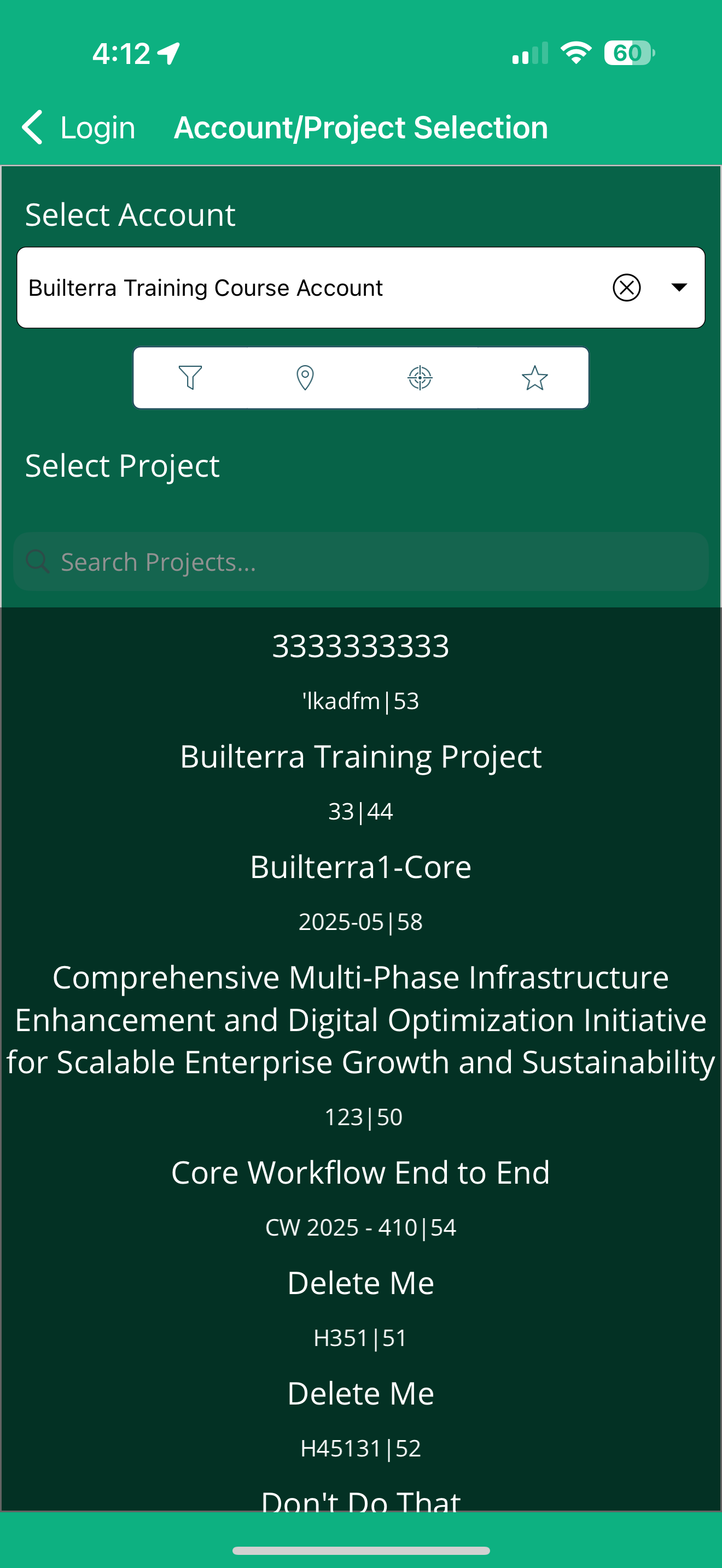
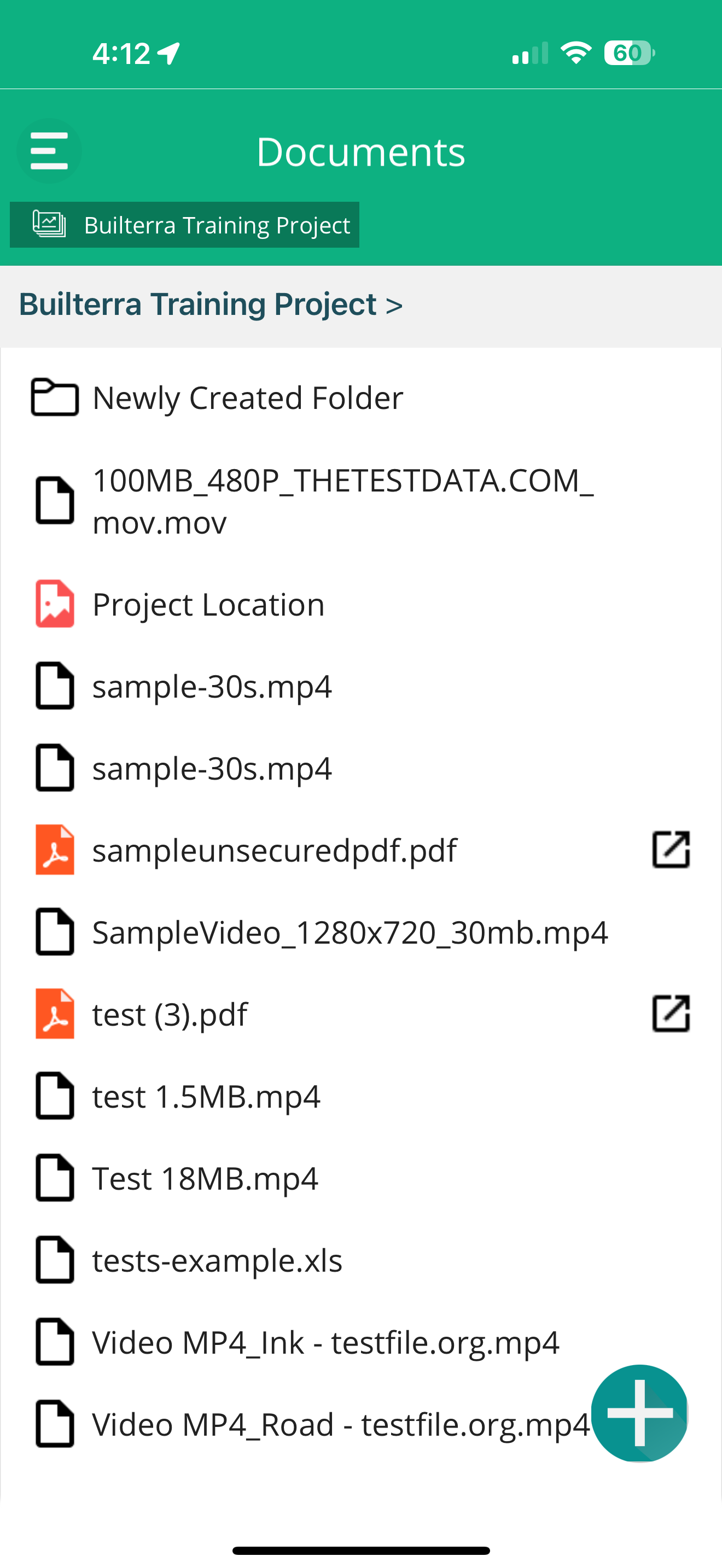
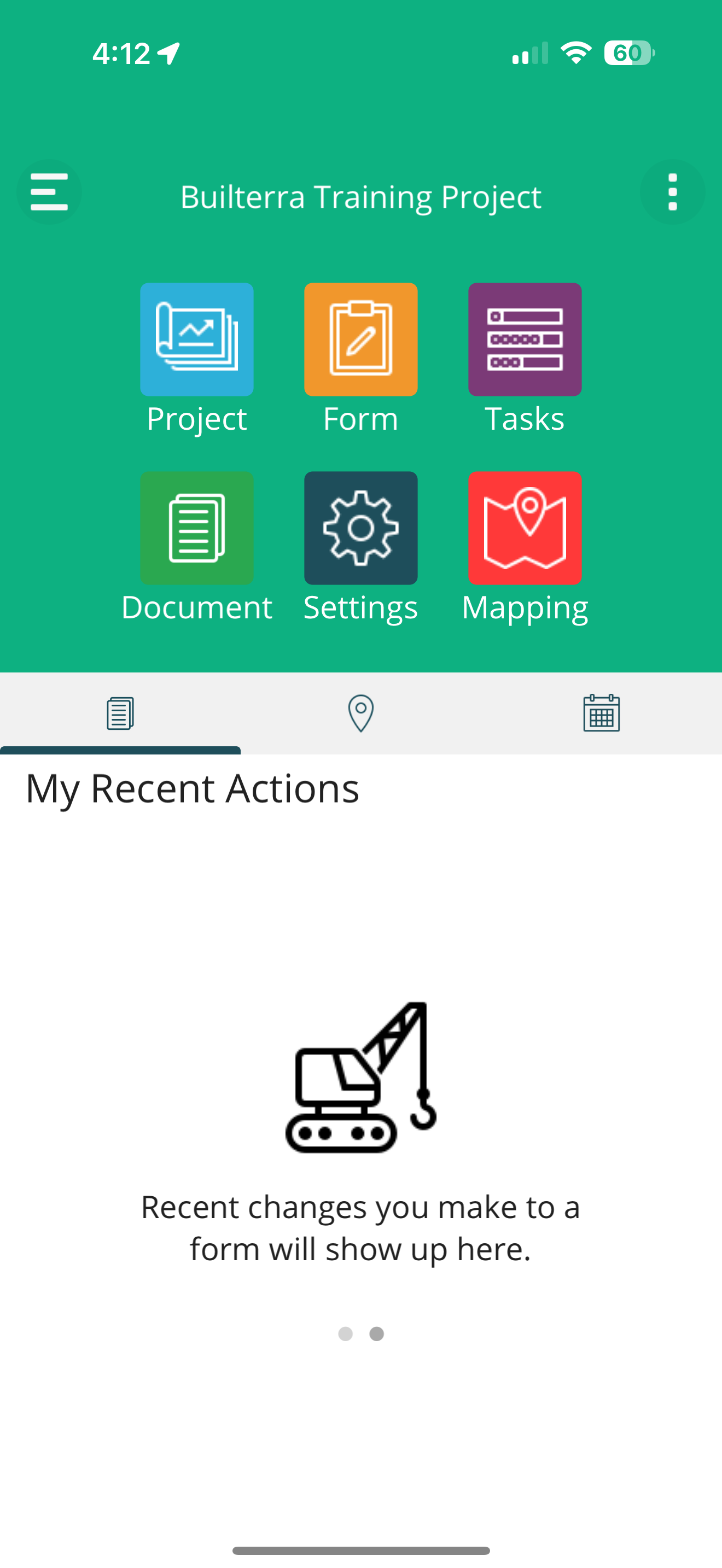
| Step 1: Log in to the Builterra Pro mobile app. | Step 2: Select the project and navigate to the Documents section using the slide-out menu or the dedicated button on the home page. | Step 3: Tap on any document to view it. |
| | |
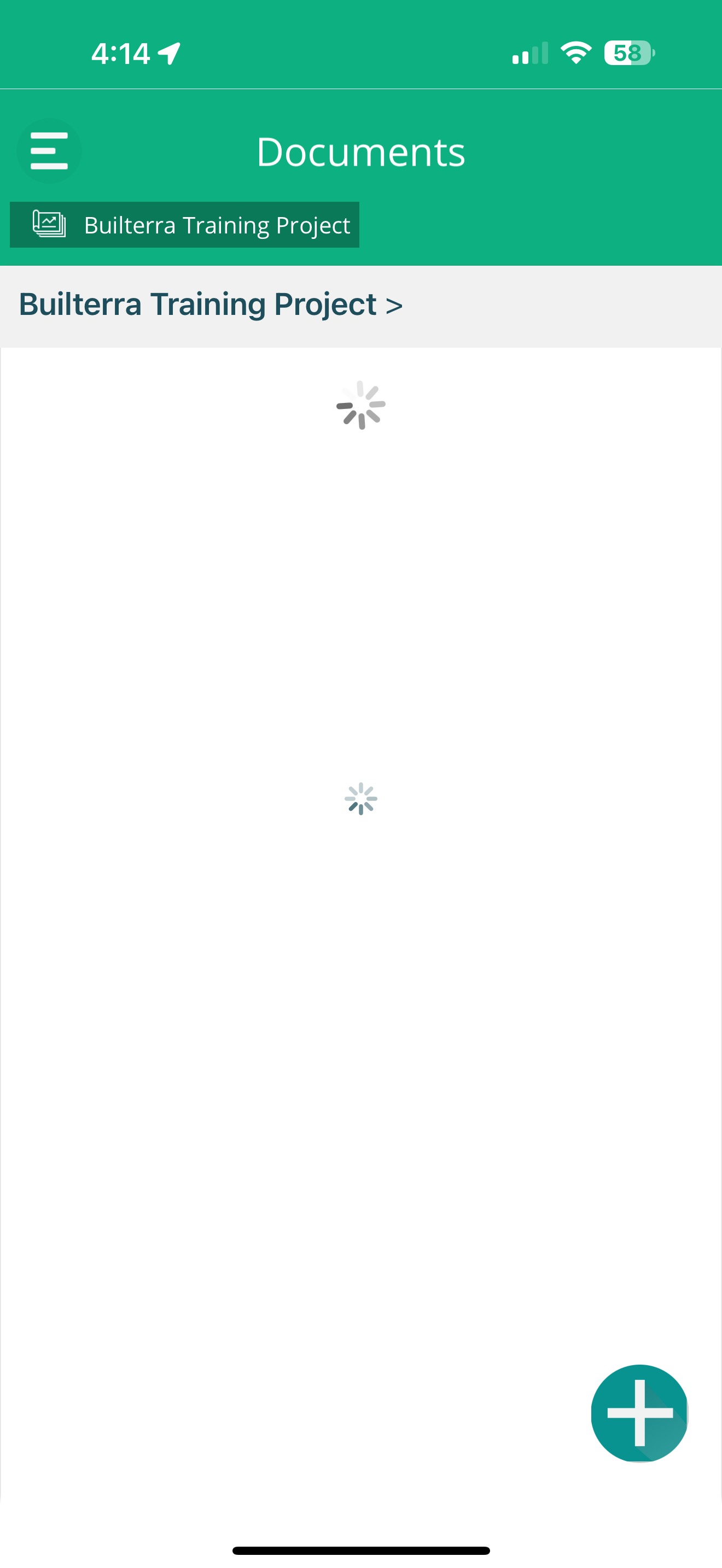
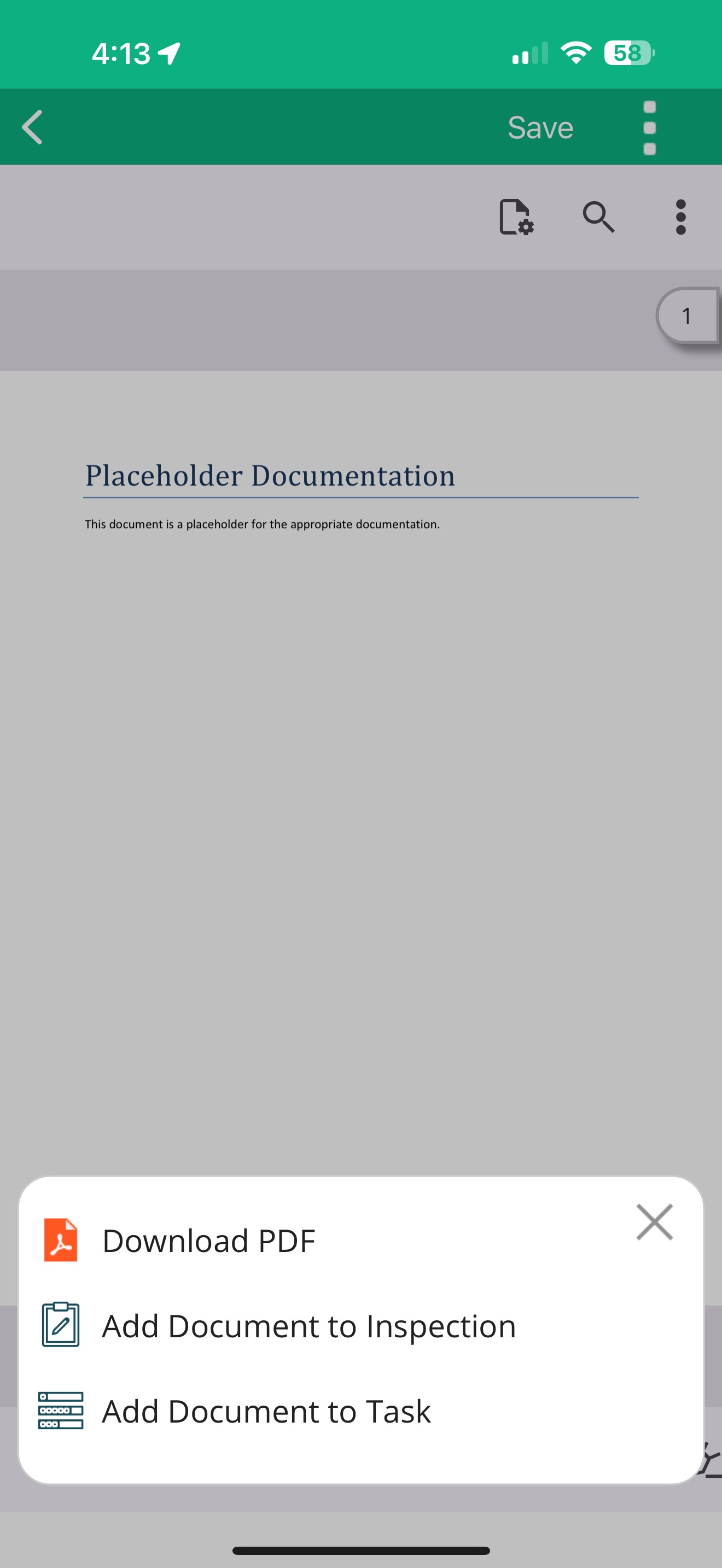
| Step 4: Use the menu button to download the file or add it to an inspection or task. | Step 5: Swipe down to refresh the page if you don't see the files immediately. |
Adding Documents to Inspection Reports on the Mobile App
If you handle inspections, this section shows you how to strengthen your reports with supporting documentation. Being able to add drawings, PDFs, photos, or reference files directly from the project library ensures your inspection records are thorough, defensible, and easy for office staff to review. This process helps create a complete narrative for each site visit, reducing follow-up questions and improving report clarity. Using this feature consistently makes your inspection documentation more professional and ensures important information is never overlooked.
| ![]() | |
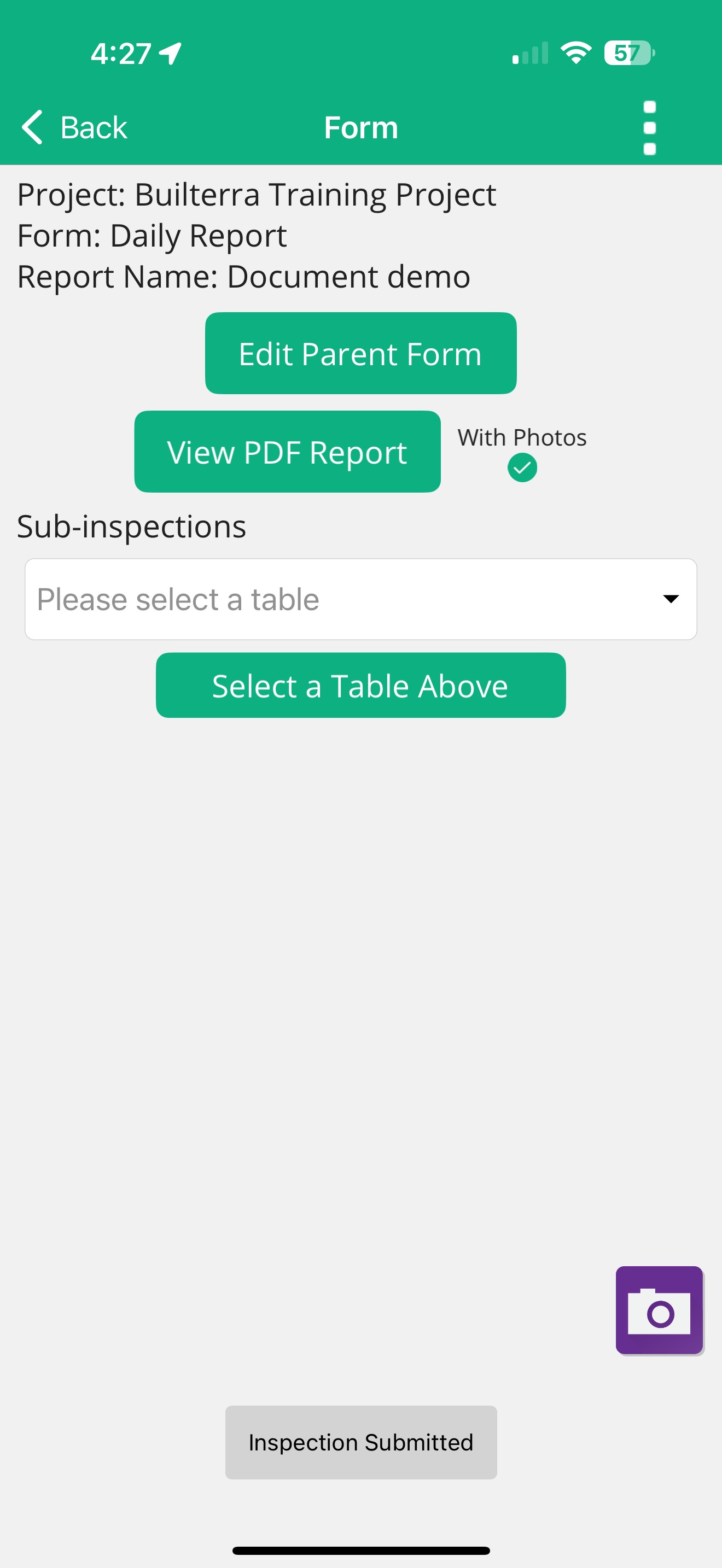
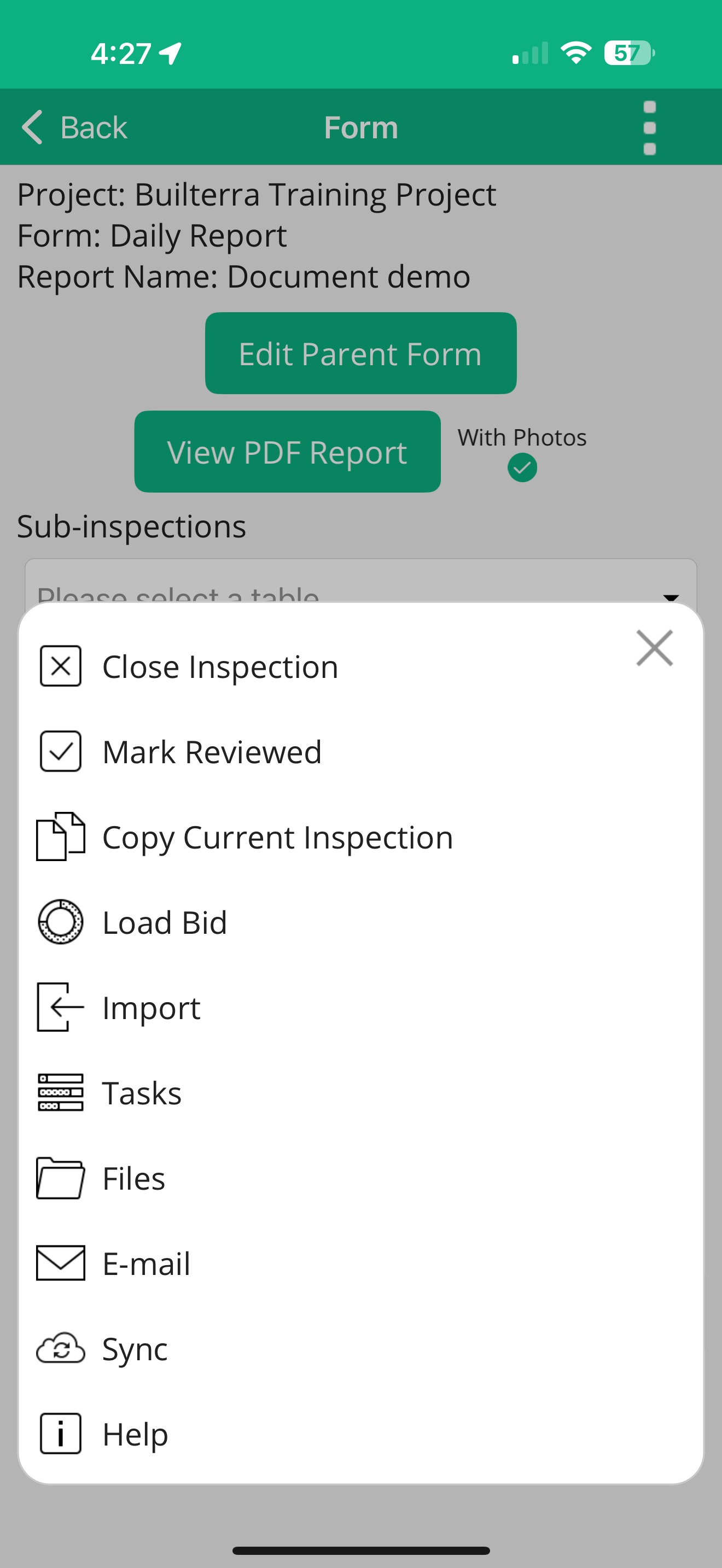
Step 1: Tap on the “Form” button on the Home page to create a new inspection report or open an existing one. | Step 2: Fill out the parent form and submit it. | Step 3: Go to the menu and tap on the “Files” option. |
![]() | ![]() | |
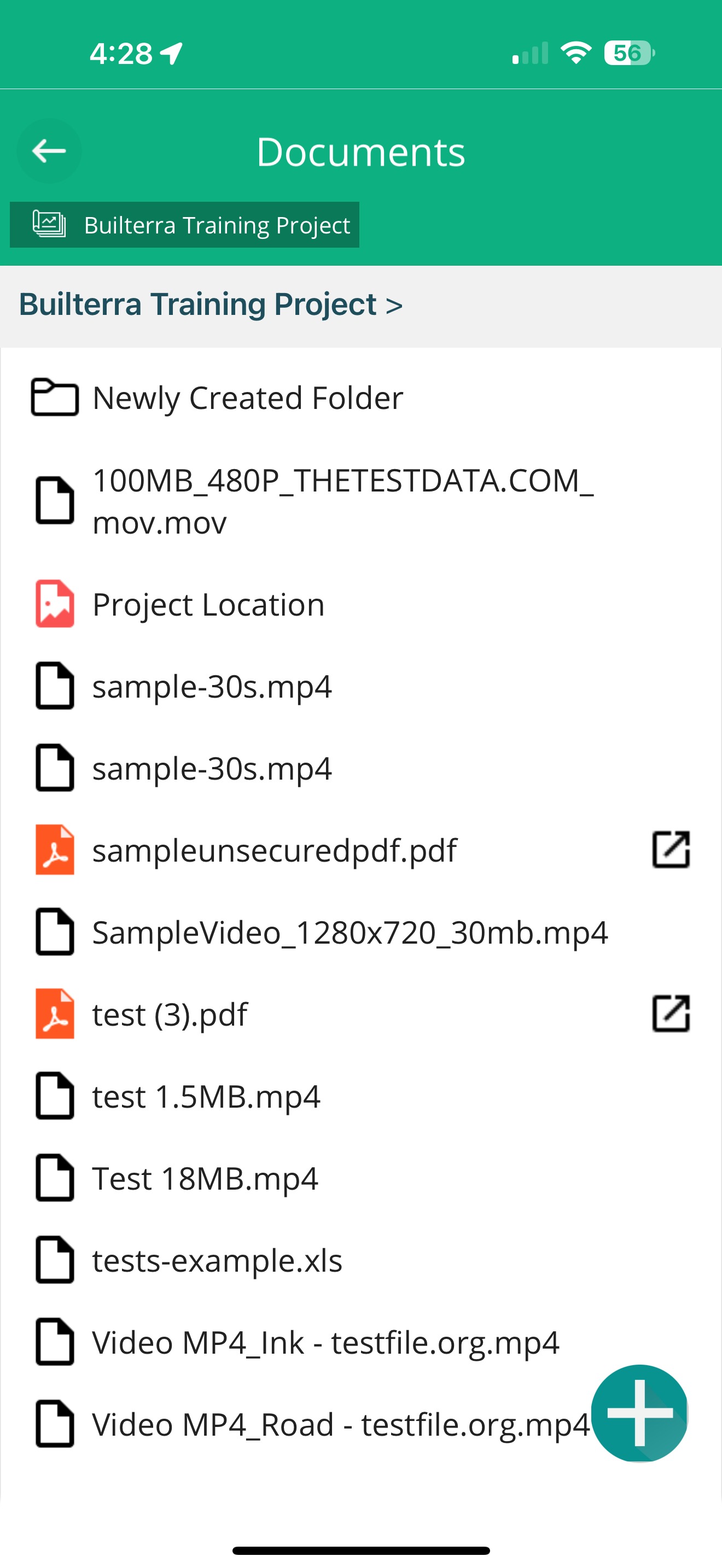
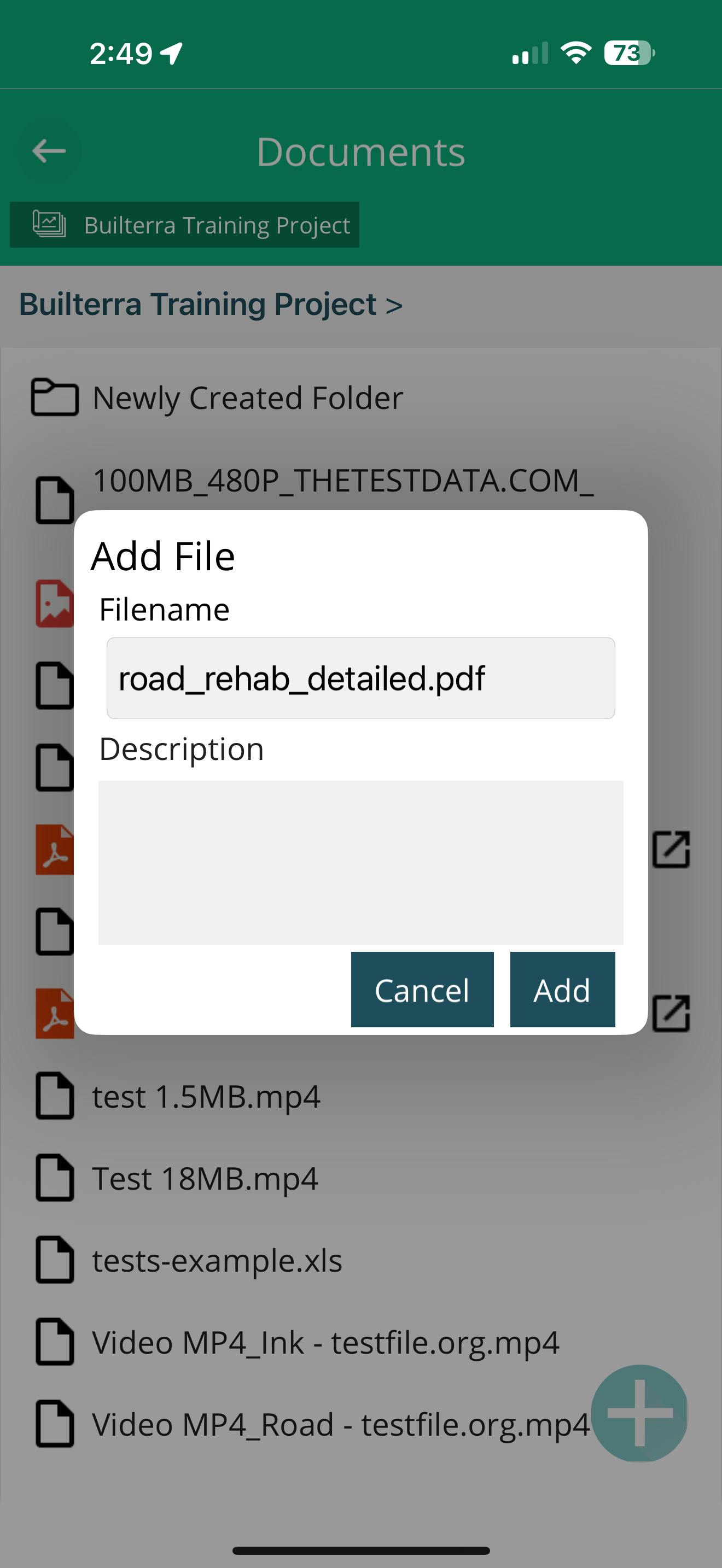
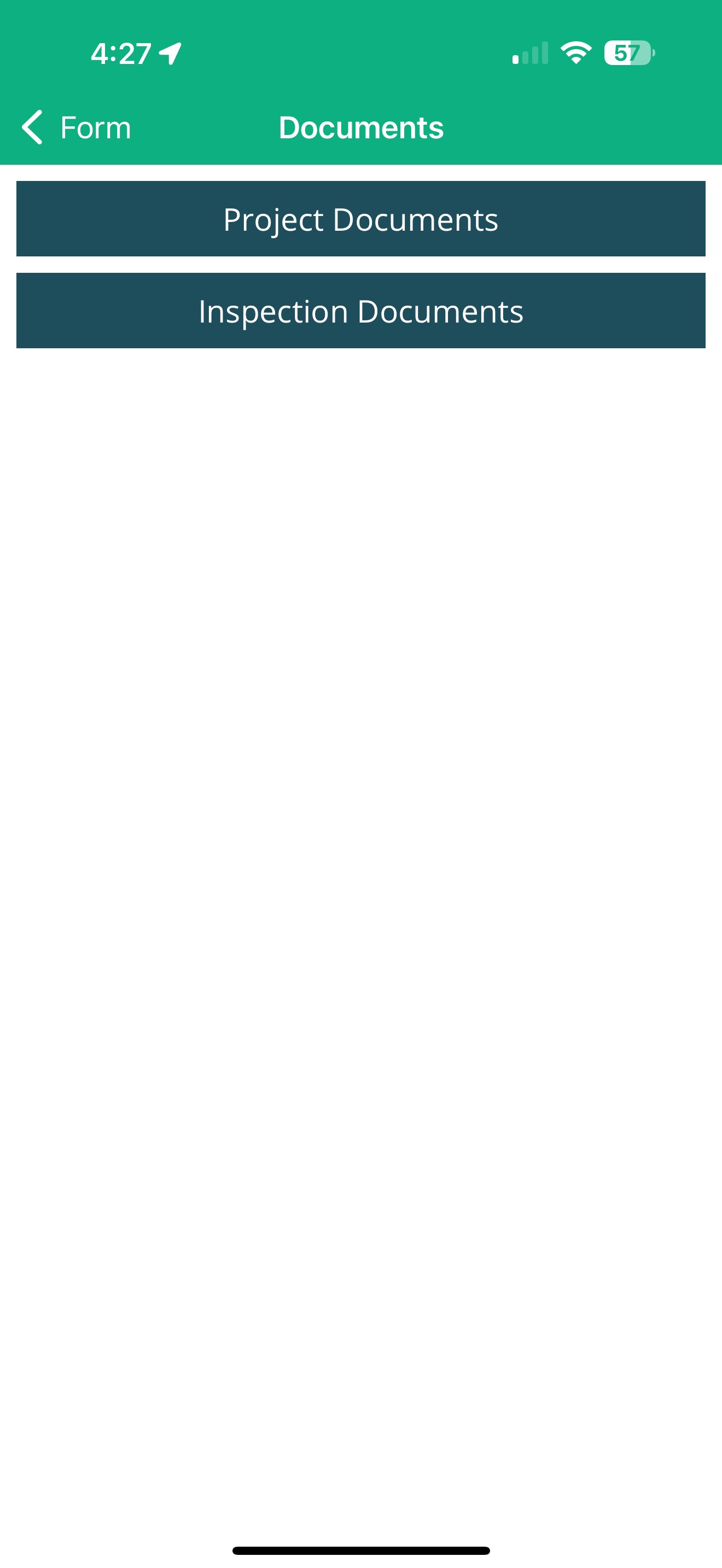
Step 4: Select project documents or Inspection Documents | Step 5: Open the desired document and tap the menu button to add it to the inspection report. | Step 6: Tap on the 'Blue Plus' button to add a new document from your device to the inspection report |
Final Thoughts
By mastering the document management features discussed in this video, you can effectively upload, view, and manage project documents both on the web portal and the mobile app.
Next steps
- Integrate Document Access Into Your Daily Inspections
- Enhance Your Inspection Reports With Supporting Documents
- Keep Project Documents Organized and Updated
Was this article helpful?
That’s Great!
Thank you for your feedback
Sorry! We couldn't be helpful
Thank you for your feedback
Feedback sent
We appreciate your effort and will try to fix the article