How to Upload, View & Link Project Documents
Project Documents in Builterra Pro provide a centralized and reliable way to store, access, and link critical files such as drawings, specifications, photos, and supporting documentation. This article walks you through uploading documents on the web portal, viewing and managing them on the mobile app, and linking documents directly to inspection reports. By mastering these features, you’ll be able to streamline document access in the field, improve collaboration between teams, and ensure your inspections and reports are supported with the right information at the right time.
TABLE OF CONTENTS
- Introduction
- Uploading Project Documents on the Web Portal
- Viewing Project Documents on the Mobile App
- Adding Documents to Inspection Reports on the Mobile App
- Viewing and Downloading Documents on the Web Portal
- Viewing Documents in the Inspection Reports on the Web Portal
- Conclusion
Overview
This article will guide you through the process of uploading, viewing, and managing project documents using the mobile app. By mastering these features, you'll be able to streamline document access and ensure seamless collaboration among project stakeholders.
Viewing Project Documents on the Mobile App
This section is useful if you frequently need quick access to reference materials while on-site—such as drawings, specifications, photos, or supporting files. Instead of digging through emails or switching between apps, you can access everything directly from the project workspace. Understanding how to open, refresh, download, or attach documents saves you time in the field and ensures you always have the most current information at your fingertips. If your role involves verifying details or making field decisions, mastering this feature helps eliminate uncertainty and improves efficiency.
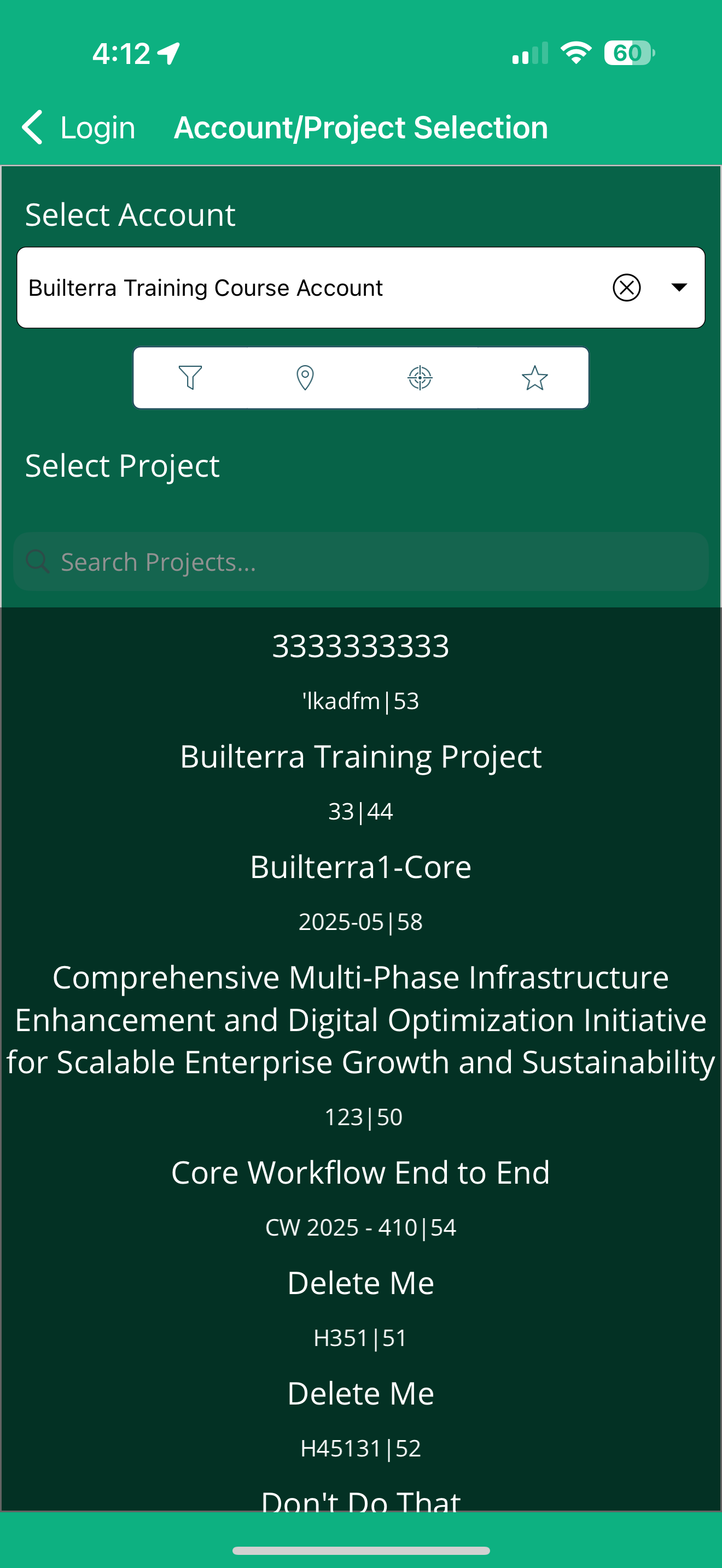 | 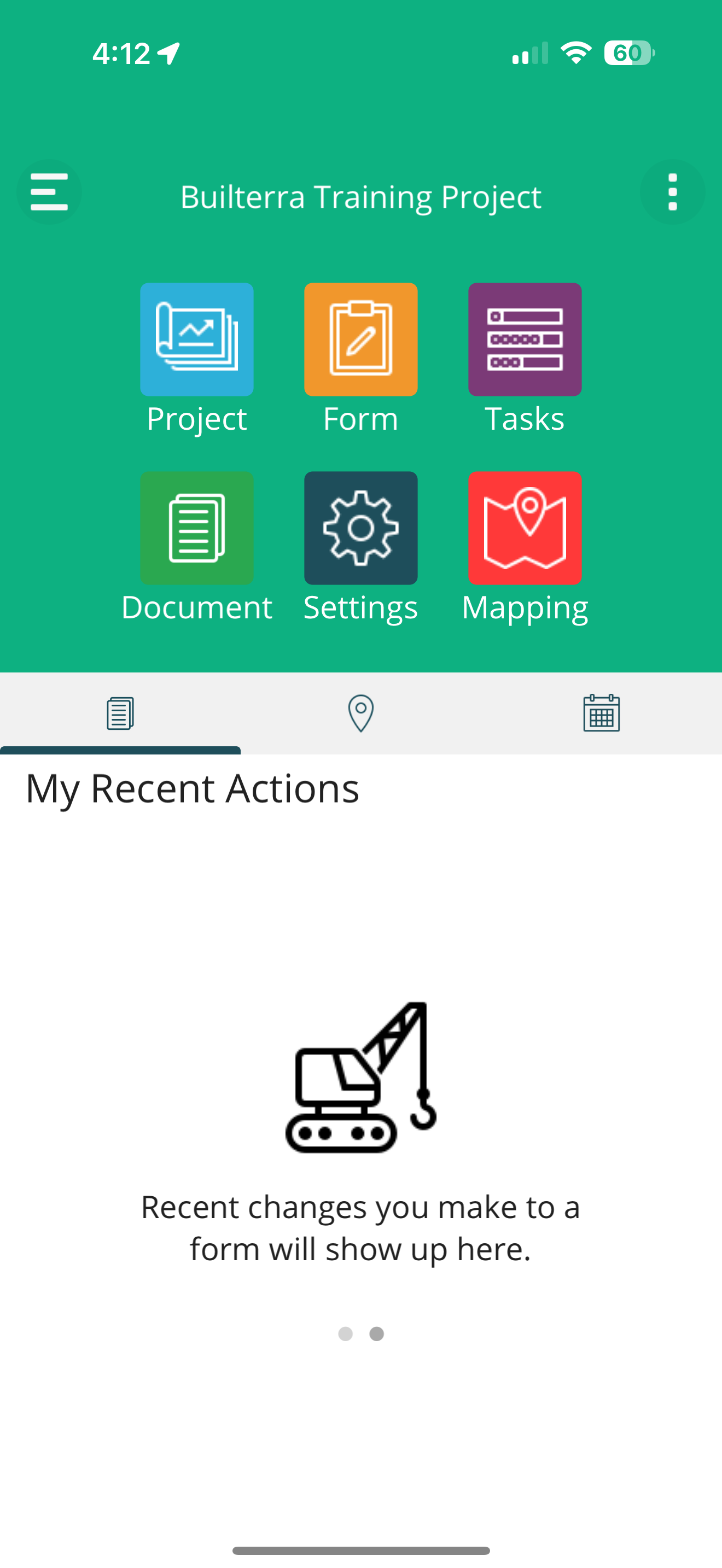 | 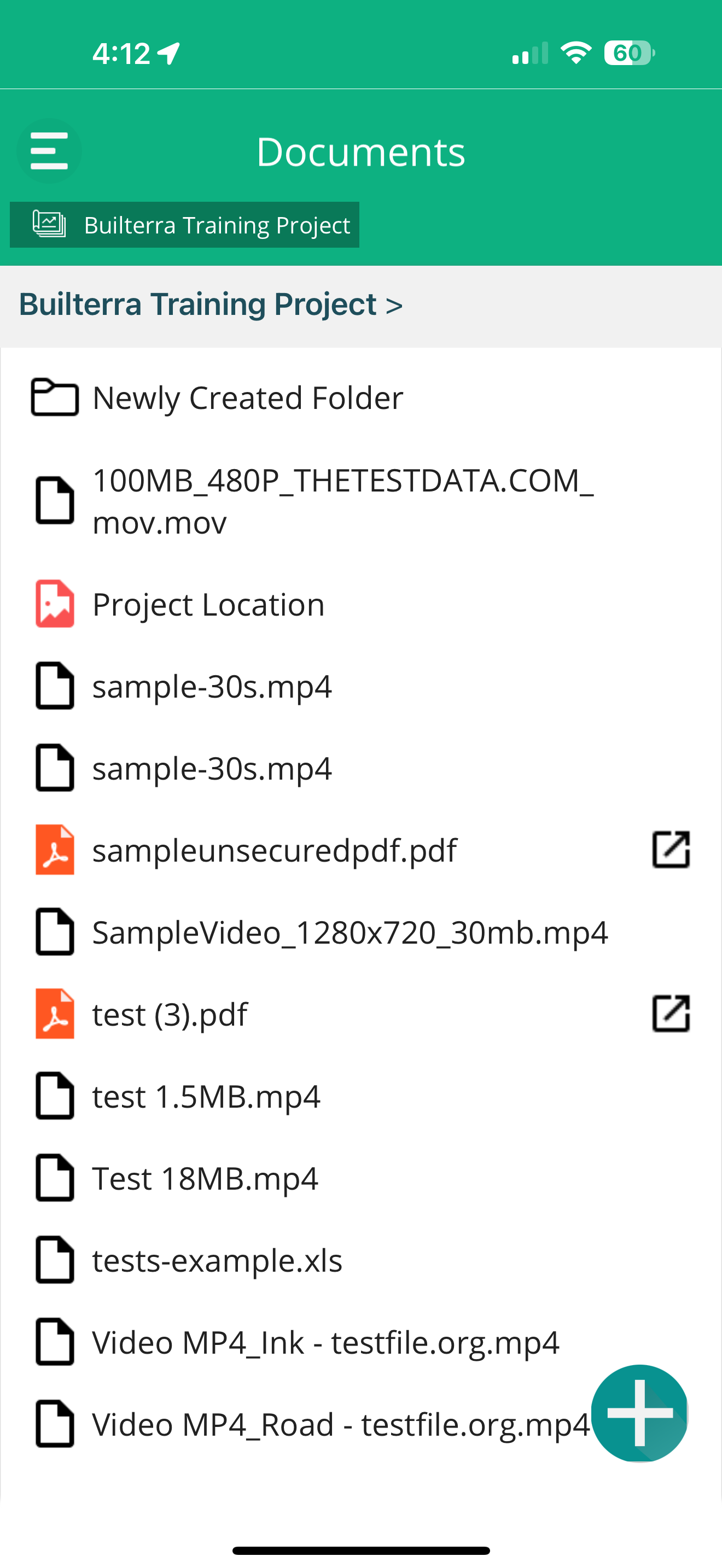 |
| Step 1: Log in to the Builterra Pro mobile app. | Step 2: Select the project and navigate to the Documents section using the slide-out menu or the dedicated button on the home page. | Step 3: Tap on any document to view it. |
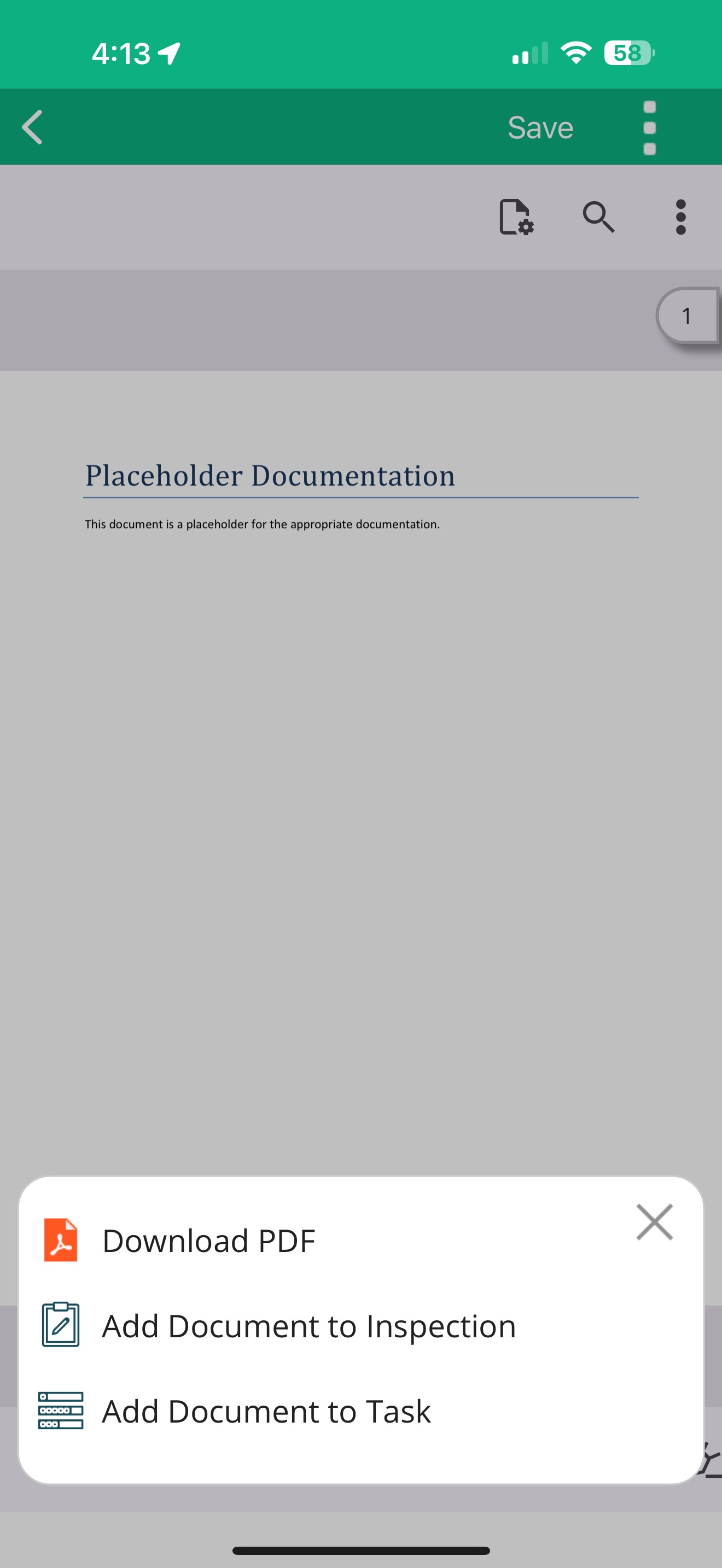 | 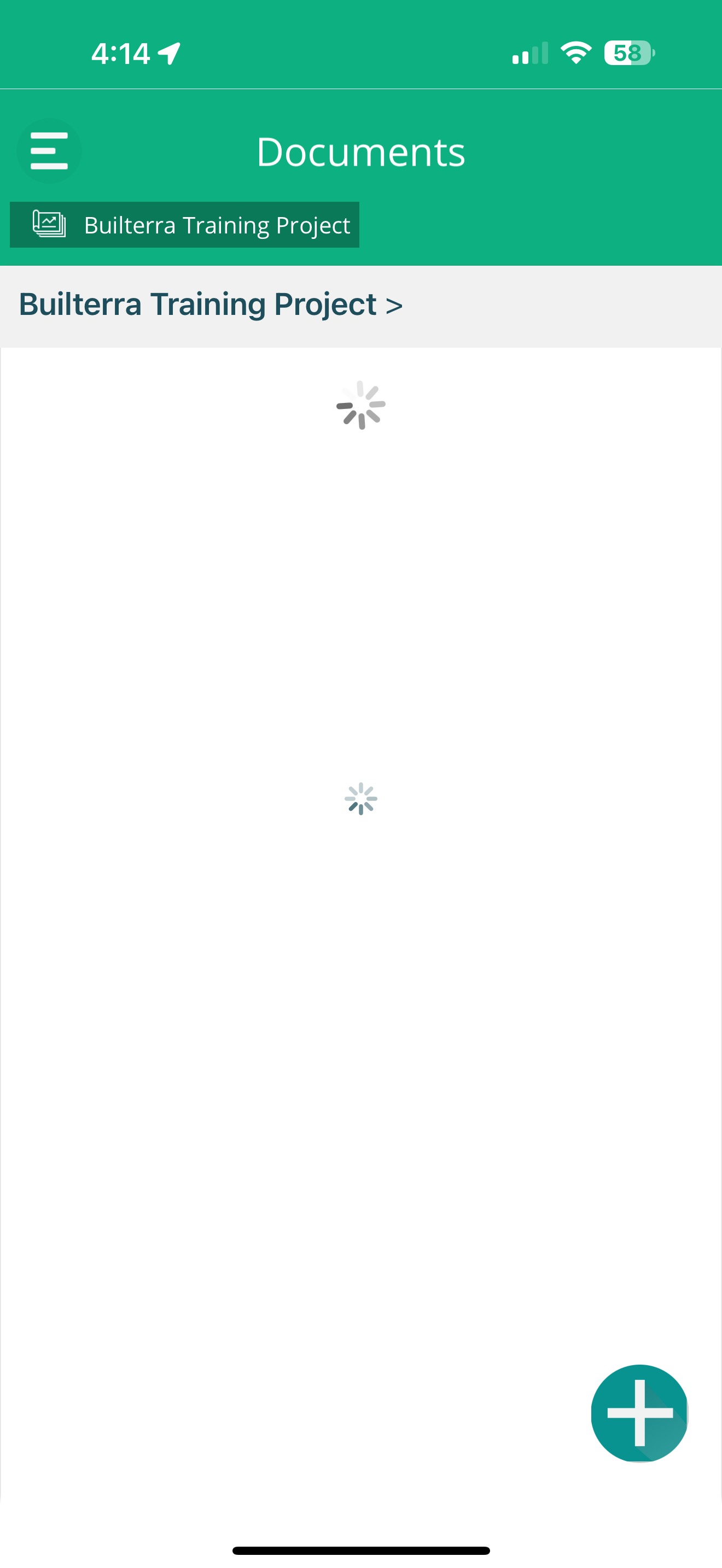 | |
| Step 4: Use the menu button to download the file or add it to an inspection or task. | Step 5: Swipe down to refresh the page if you don't see the files immediately. |
Adding Documents to Inspection Reports on the Mobile App
If you handle inspections, this section shows you how to strengthen your reports with supporting documentation. Being able to add drawings, PDFs, photos, or reference files directly from the project library ensures your inspection records are thorough, defensible, and easy for office staff to review. This process helps create a complete narrative for each site visit, reducing follow-up questions and improving report clarity. Using this feature consistently makes your inspection documentation more professional and ensures important information is never overlooked.
 | 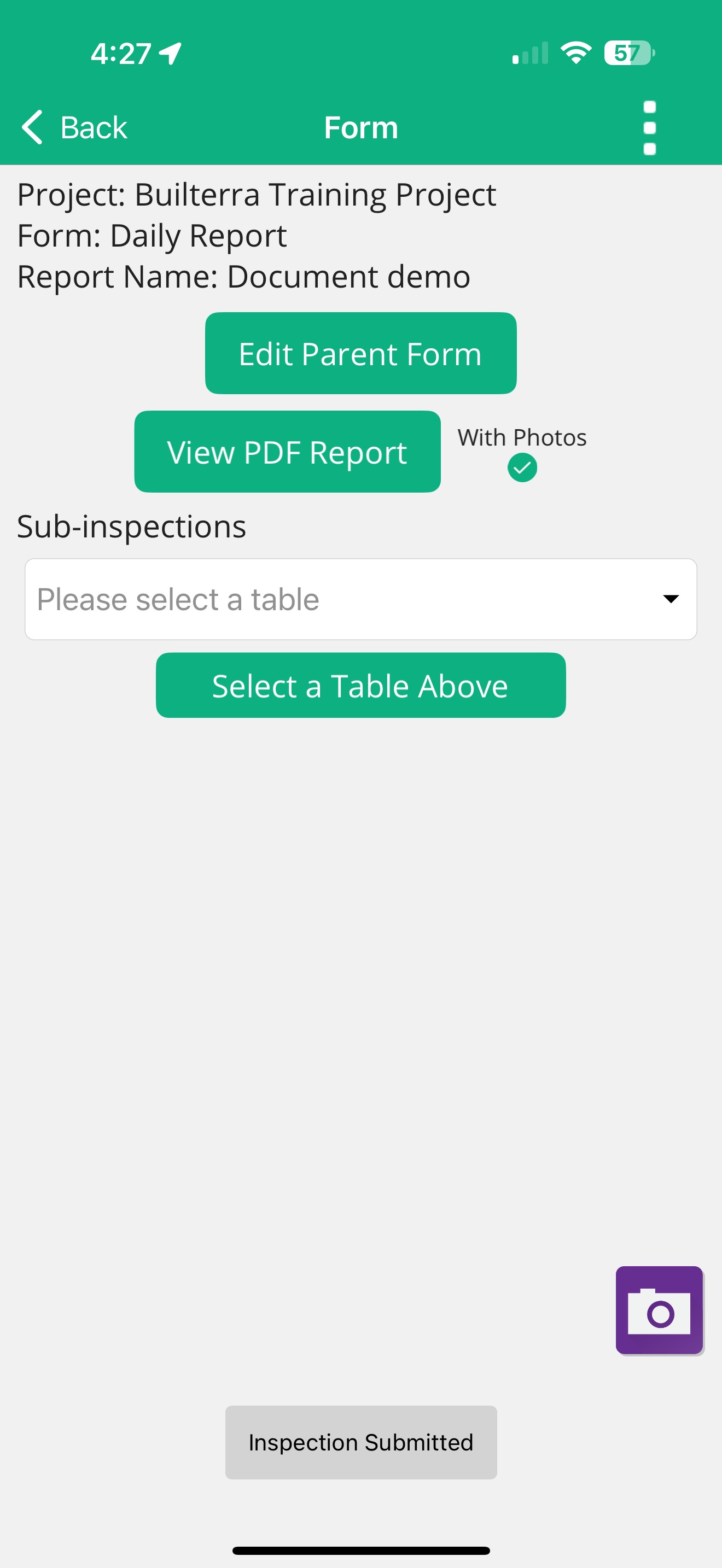 | 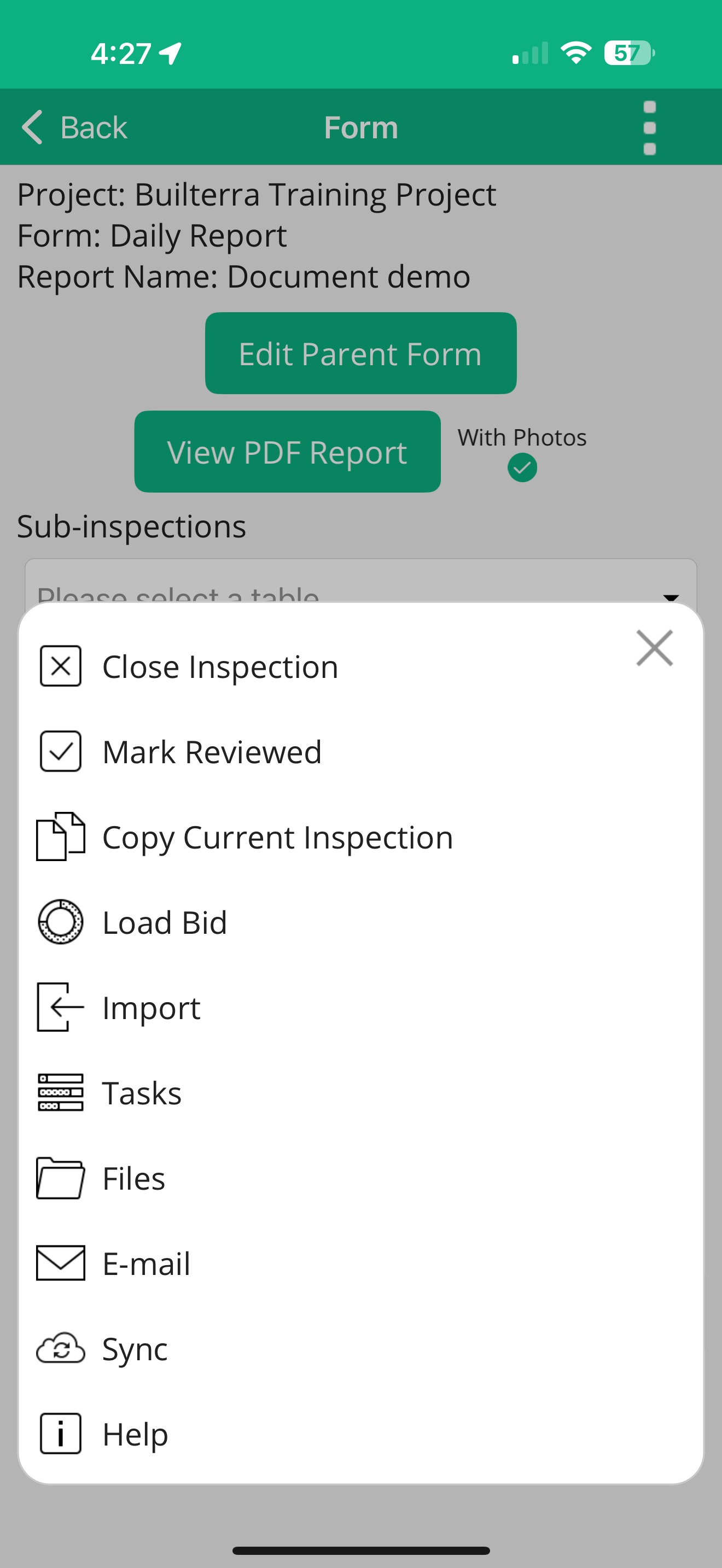 |
Step 1: Tap on the “Form” button on the Home page to create a new inspection report or open an existing one. | Step 2: Fill out the parent form and submit it. | Step 3: Go to the menu and tap on the “Files” option. |
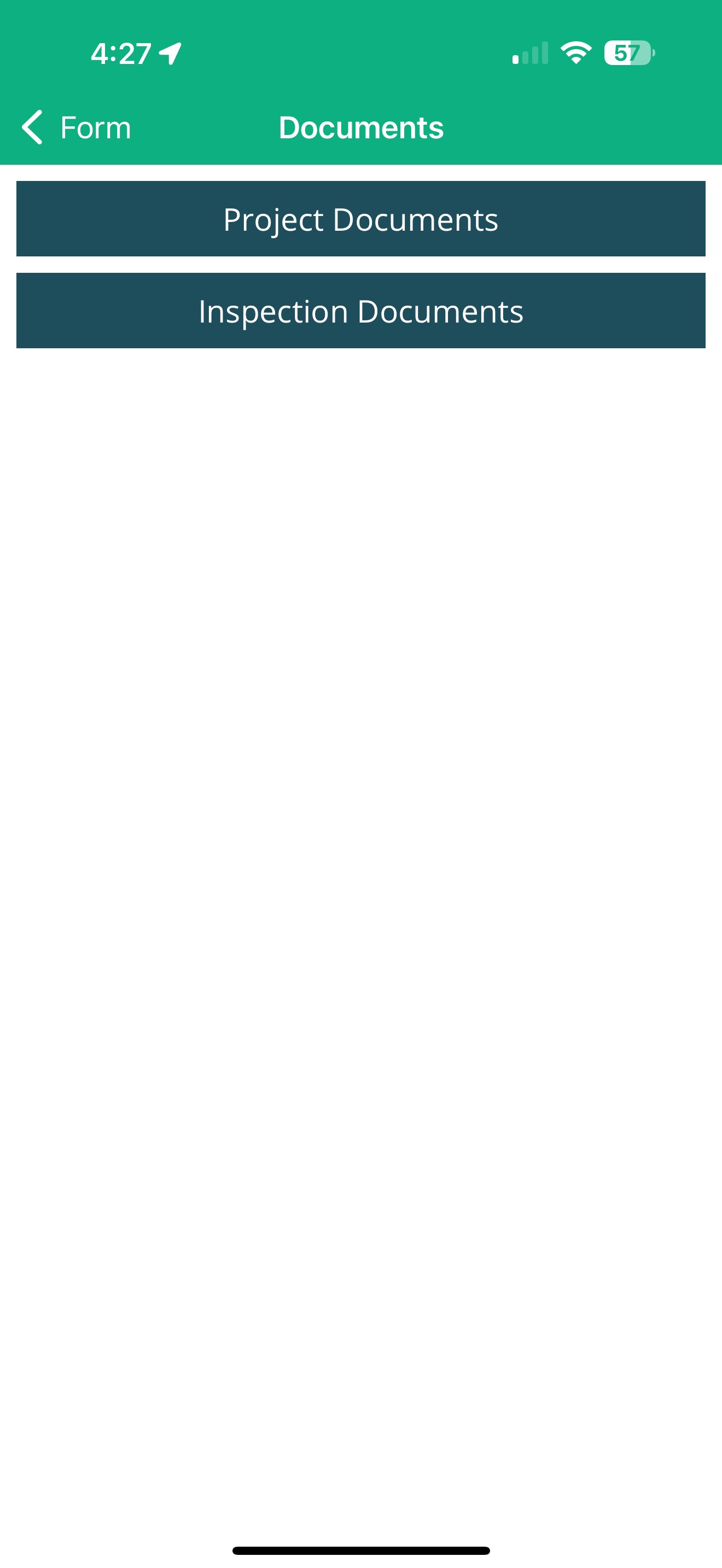 | 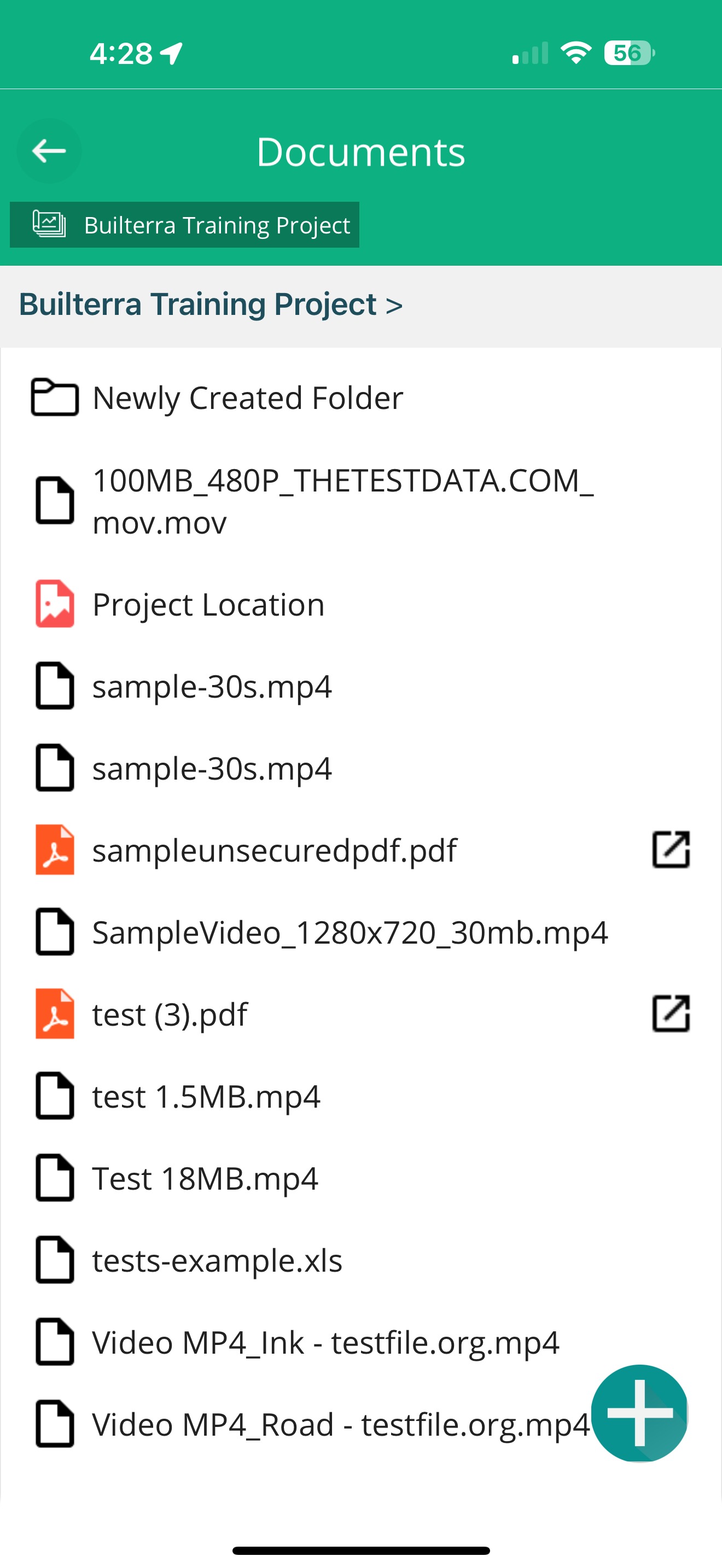 | 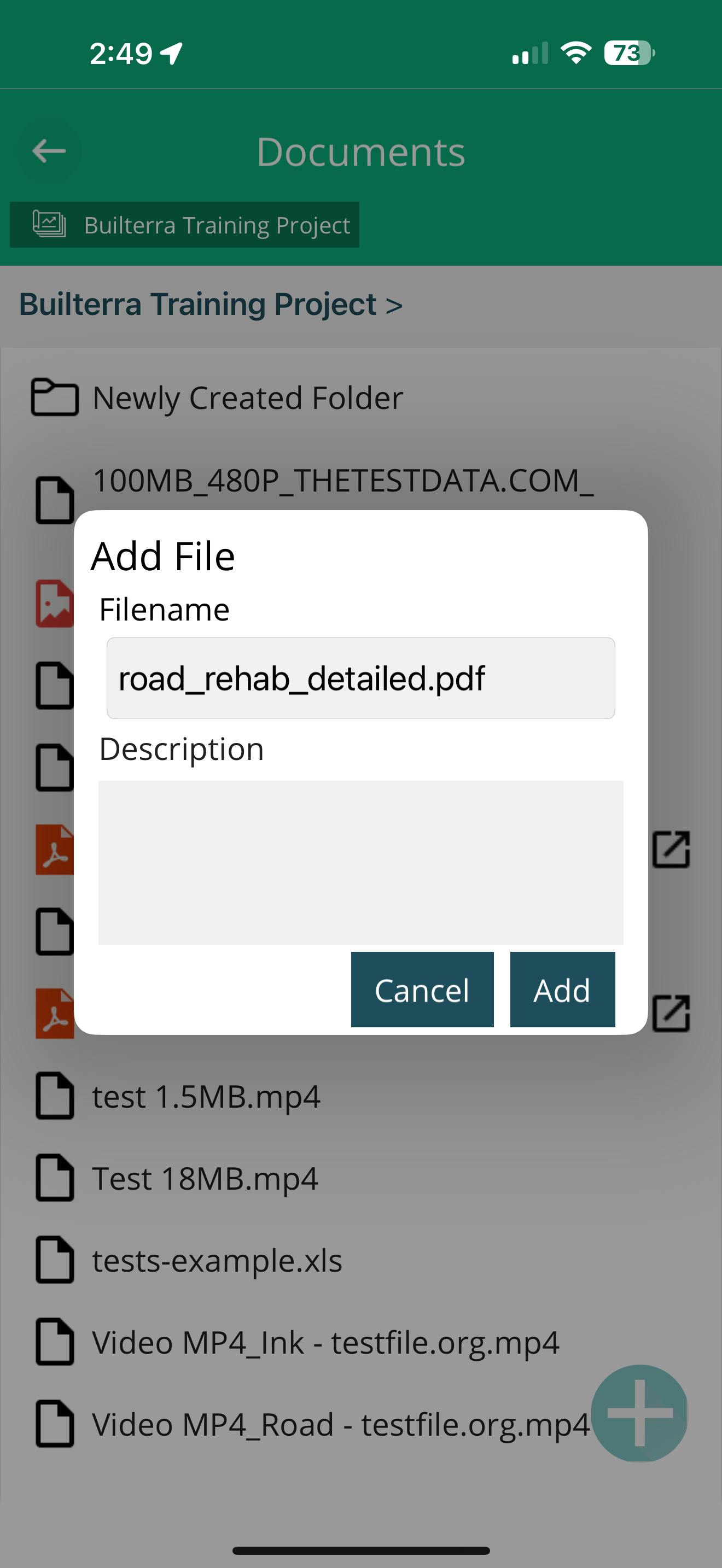 |
Step 4: Select project documents or Inspection Documents | Step 5: Open the desired document and tap the menu button to add it to the inspection report. | Step 6: Tap on the 'Blue Plus' button to add a new document from your device to the inspection report |
Final Thoughts
By mastering the document management features discussed in this video, you can effectively upload, view, and manage project documents both on the web portal and the mobile app.
Next steps
- Integrate Document Access Into Your Daily Inspections
- Enhance Your Inspection Reports With Supporting Documents
- Keep Project Documents Organized and Updated
Was this article helpful?
That’s Great!
Thank you for your feedback
Sorry! We couldn't be helpful
Thank you for your feedback
Feedback sent
We appreciate your effort and will try to fix the article