Minimum permissions needed for content in this article | |||
| Role: Viewer | Inspect: None | Tender: None | Type: Internal & External User |
What is Microsoft Single-Sign-on (SSO)?
Microsoft Single-sign-on (aka SSO) allows users to log into Builterra with their Microsoft credentials. Logging into Builterra allows your organization to use office 365 security controls that they may need to execute for security reasons. Office 365 security measures can differ from organization to organization, but a minimum password length and complexity would be a few examples.
Builterra Account Administrators may have users be required to log in with an "External Login"; this is Microsoft SSO. However, Builterrra users will not be required to use Microsoft SSO by default.
How to Login with Microsoft SSO
The first step is to connect your Builterra account with your Microsoft login, to do this, follow the steps below:
1. Log in to the Builterra web portal.
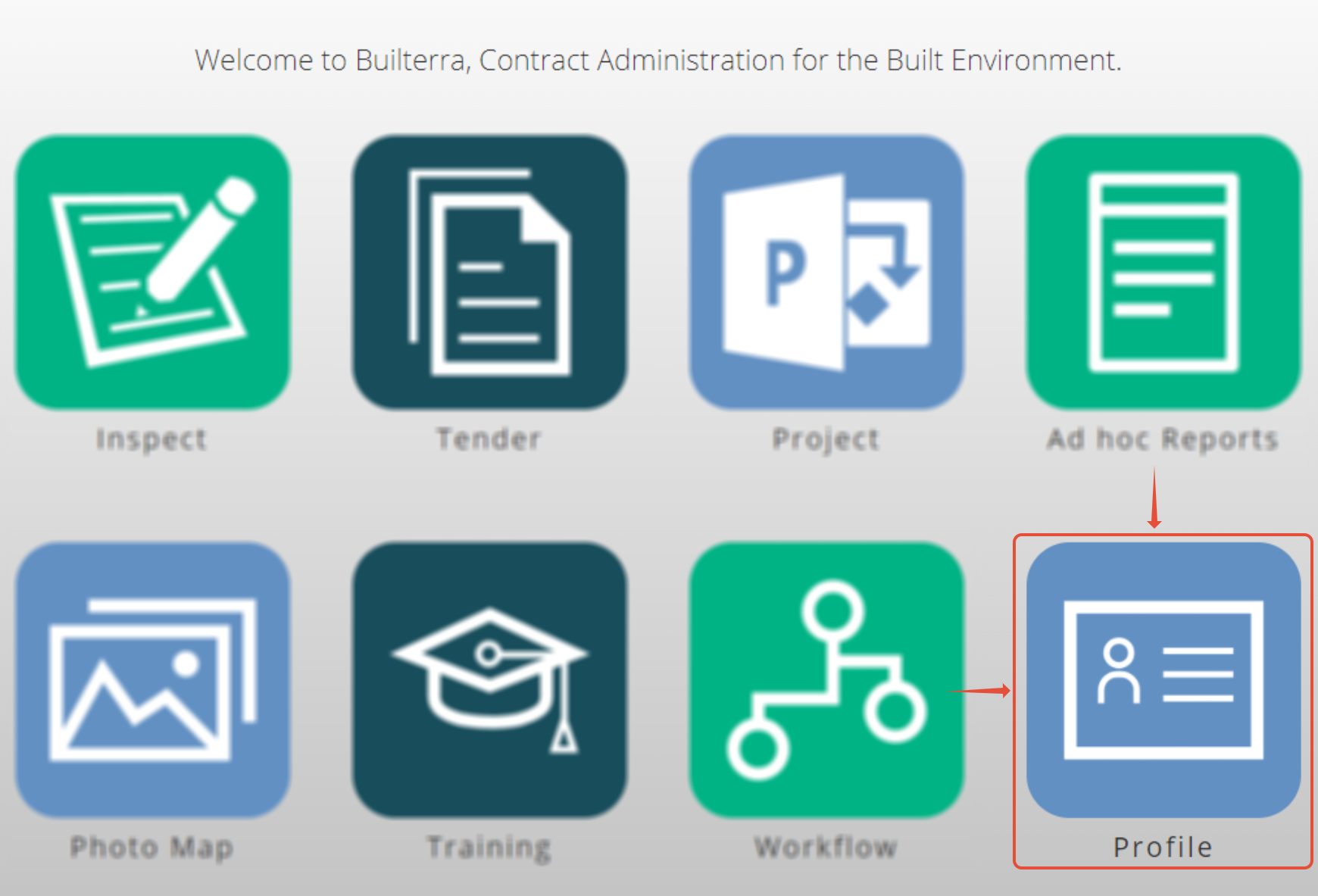
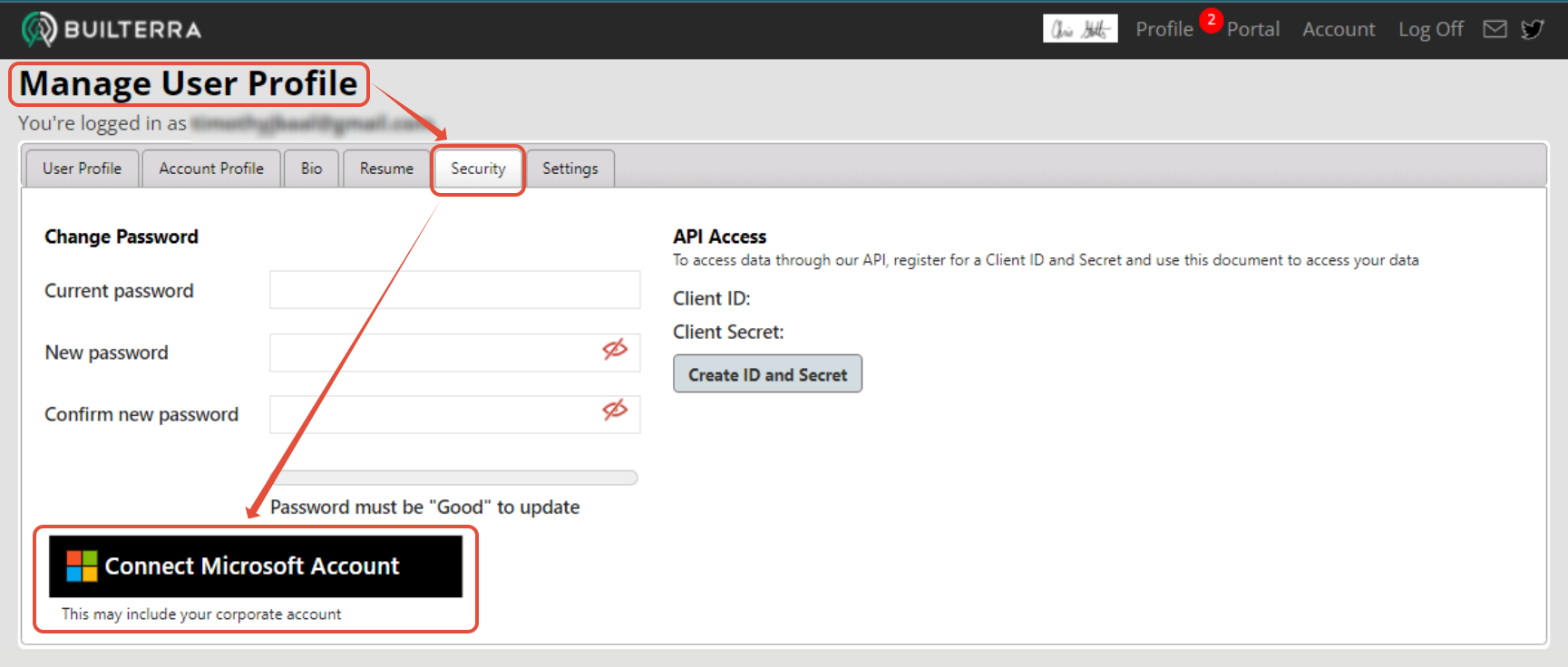
2. Go into the 'Profile' portal, and click on the 'Security' tab.
3. Click the 'Connect Microsoft Account' button, and follow the instructions provided by Microsoft to log in to your corporate Microsoft account.
How to Disconnect your Microsoft and Builterra account login
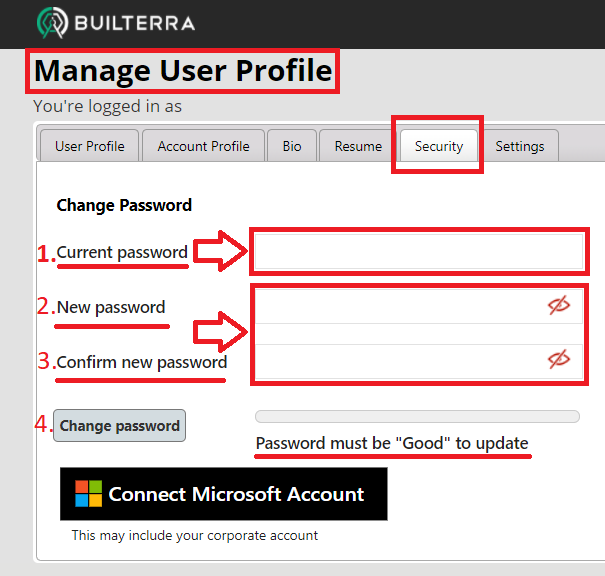
If you connected your Microsoft account to Builterra by mistake, or you would like to go back to only using the Buitlerra login credentials, you will need to reset your Builterra password. To do this, you can follow the steps below:
- On the ‘Manage User Profile’ page, go to the ‘Security’ tab.
- Follow the steps listed in the image below:
If you prefer to have a visual example, you can watch this FAQ training video:
How to Disconnect someone else's Microsoft Account from your browser
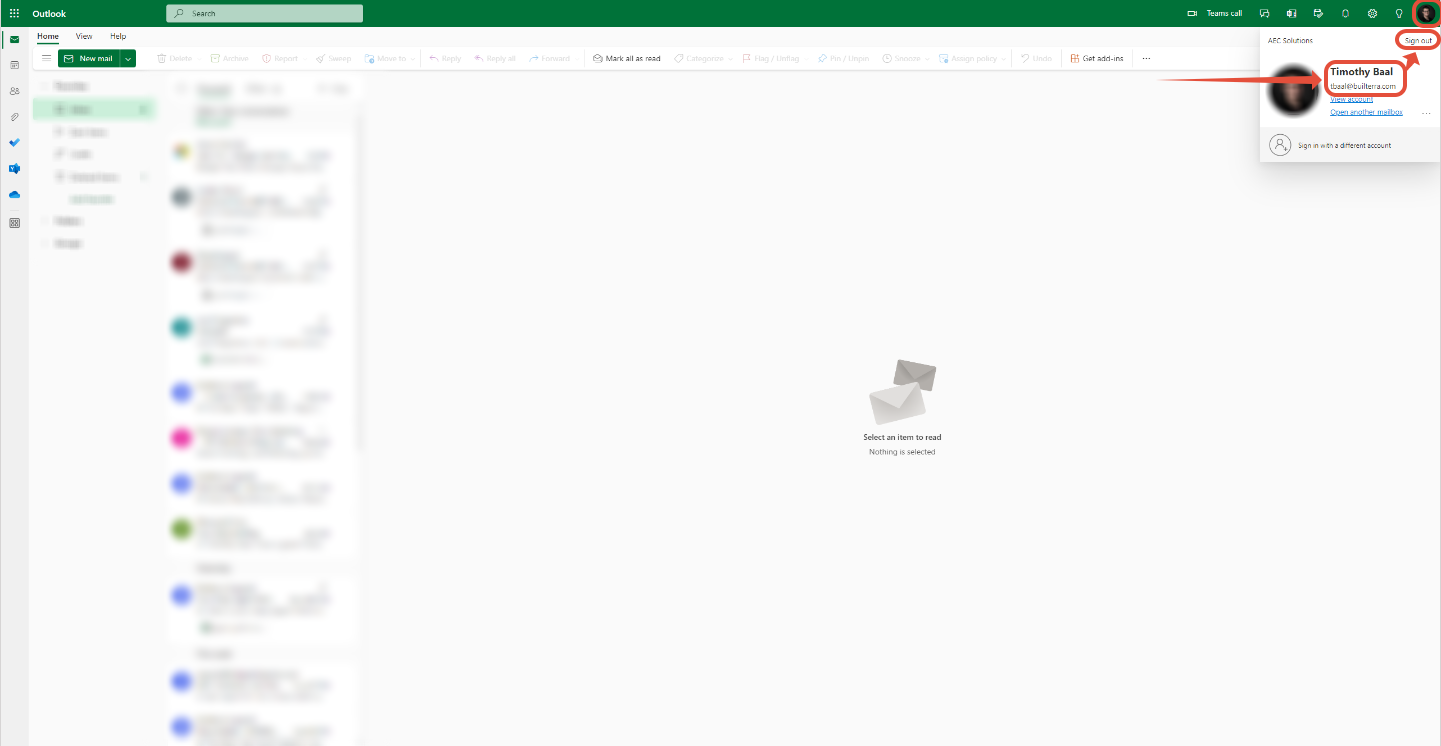
1. Go to the outlook.com website
2. Click on the Login button, and check to see if you are automatically logged in.
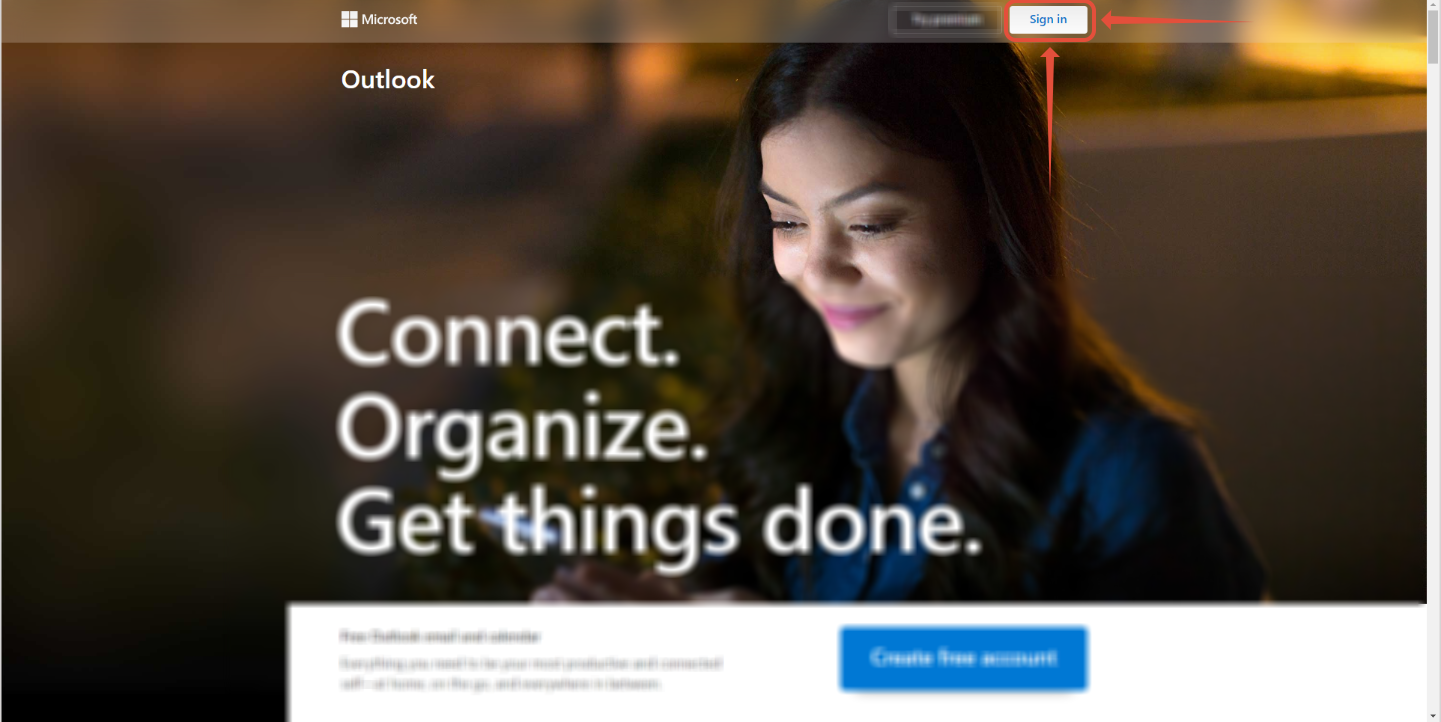
3. If you are automatically signed into Microsoft, click the icon in the top-right corner, and check the e-mail/name that appears on the screen is correct.
4. If it is someone else's account, click the logout button, sign in with your Microsoft account, and follow the steps in the article above.
How to Disconnect someone else's Microsoft account from your mobile phone
1. Go to the login.microsoft.com website on your phone's browser
2. If you are automatically signed into Microsoft, click the icon in the top-right corner, and check the e-mail/name that appears on the screen is correct.
3. If it is someone else's account, click the logout button
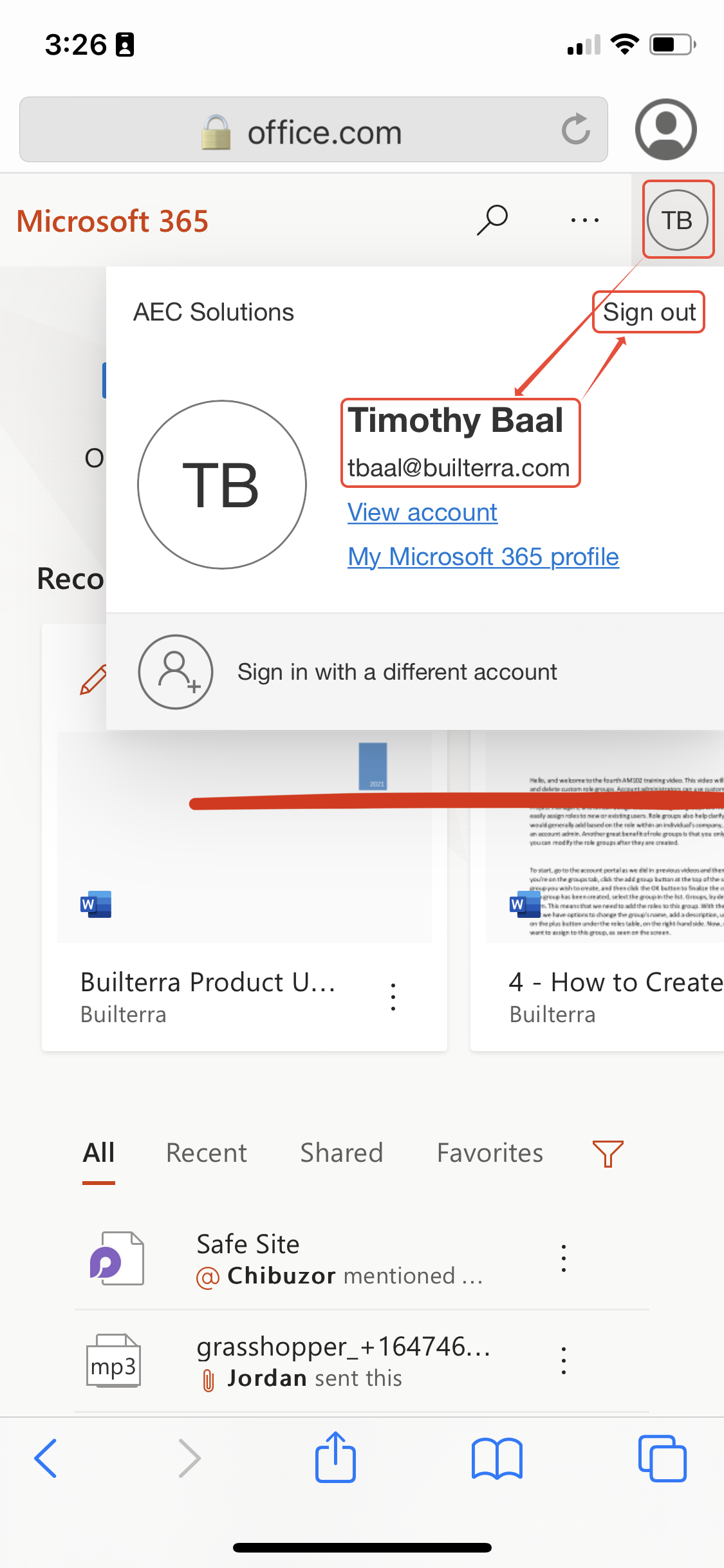
4. Sign in with the correct e-mail and password for your corporate Microsoft account
5. Go back to the Builterra app, and then sign-in with the Microsoft login button.
Next steps
- Connect your Buitlerra account with Microsoft SSO
- Sign in on the mobile app and the web portal with Microsoft.
- Let us know if this article was helpful below.
Recommended Articles
Why can't I see my inspection or project on the Builterra web portal?Why can't I see my inspection or project on the mobile app?How can I quickly view my projects?Was this article helpful?
That’s Great!
Thank you for your feedback
Sorry! We couldn't be helpful
Thank you for your feedback
Feedback sent
We appreciate your effort and will try to fix the article